

With the Roezan native GHL integration, you can send SMS from Roezan directly inside your GHL workflows, as well as add tags, lists, and more. Any messages also sync to the contact record.
It's like a dream come true, fixing many of the problems with native GHL SMS (especially for large sends, SMS broadcasts, and event reminders!).
Here's how to get started:
How To Connect GHL + Roezan
Connecting GHL and Roezan is extremely simple.
1. Navigate to the Roezan Integrations Page
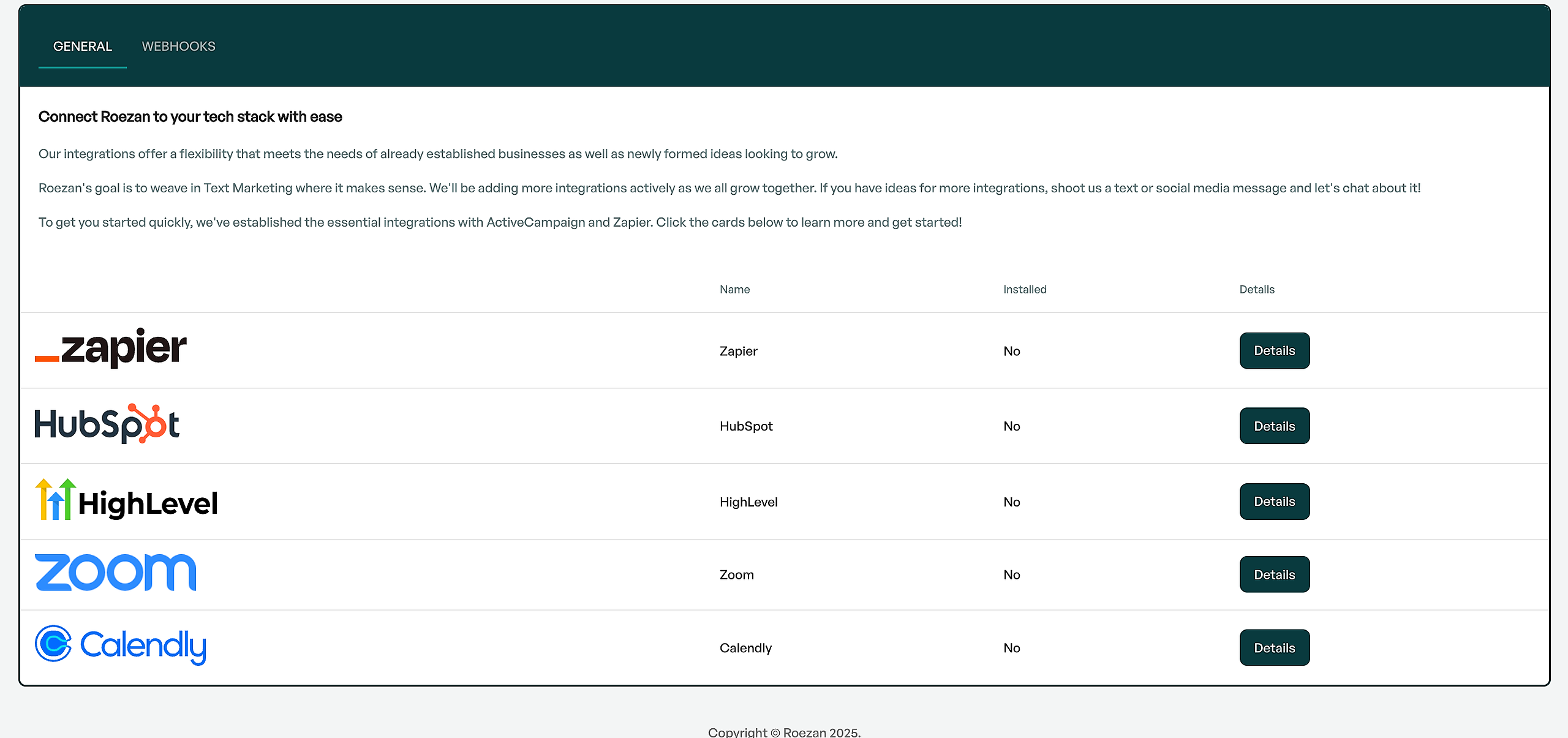
2. Click on GHL / Go High Level
3. Click "Connect HighLevel Account"
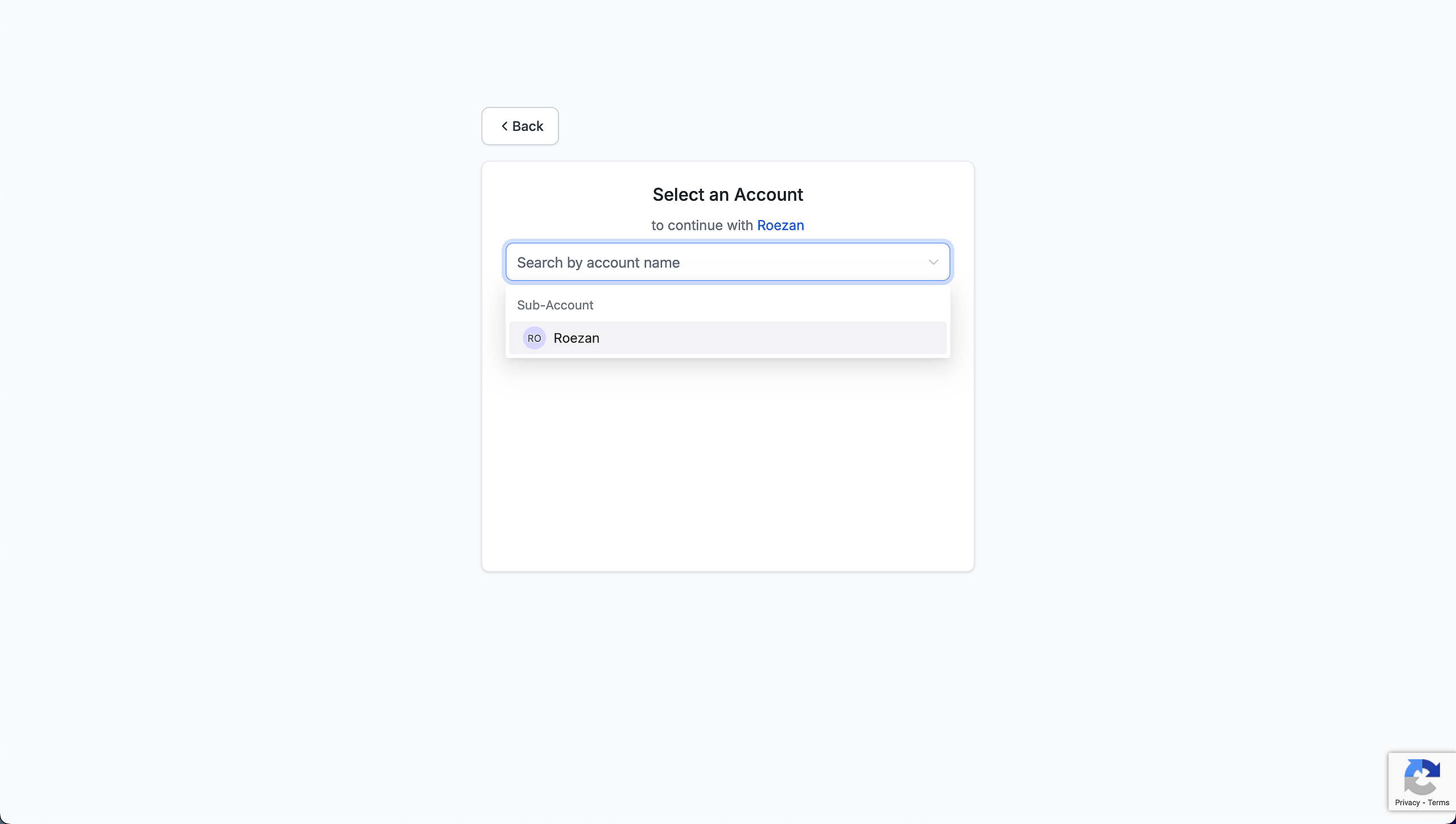
4. This will ask you to login to GHL and select the account you want to add it to
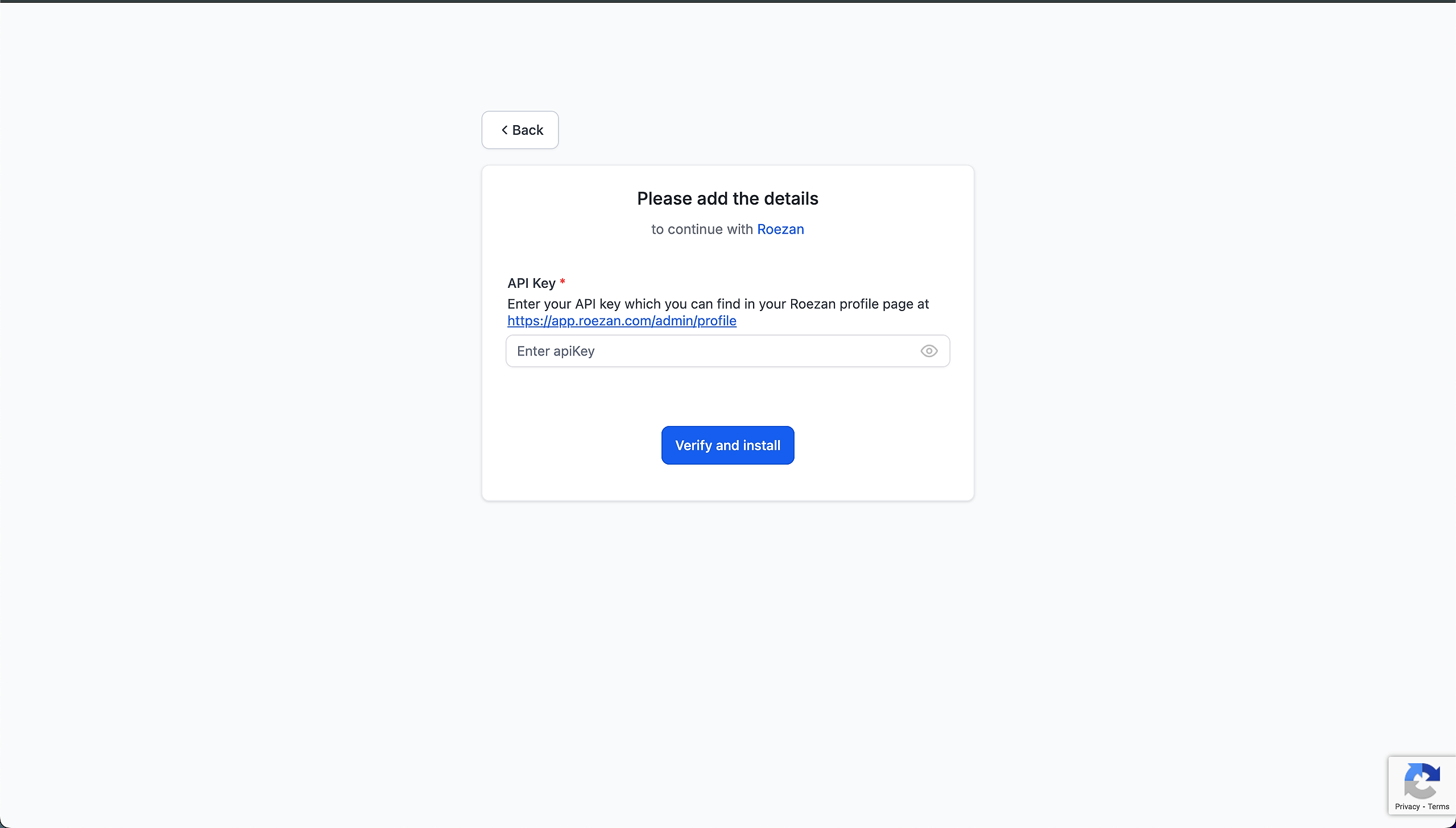
5. Add in the Roezan API key for your acct (This can be found on your Roezan profile page)
Note: Make sure you use the Roezan API key found in your profile page, NOT your GHL API key!
6. When it's connected, it should redirect you back to Roezan to confirm!
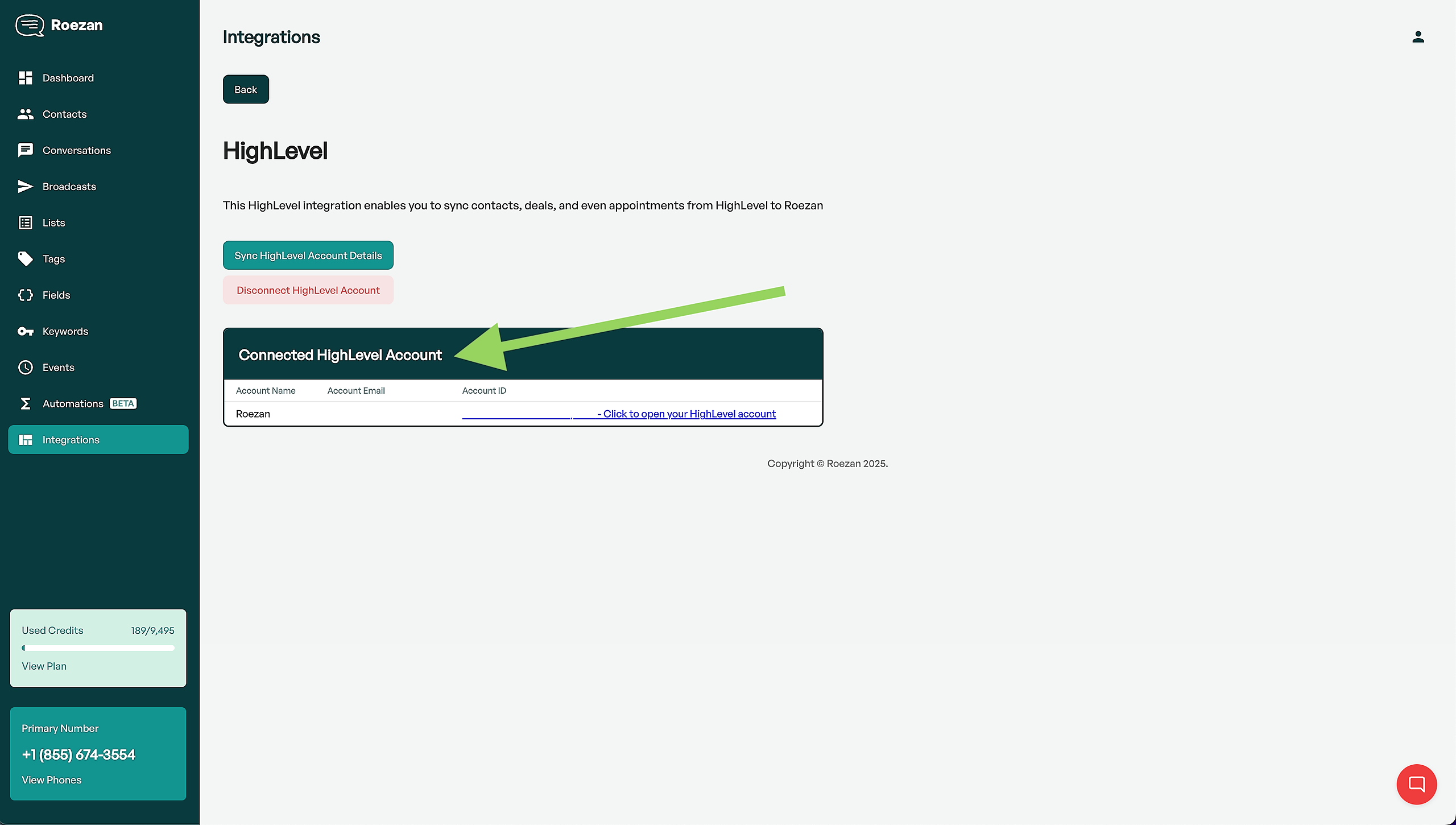
That's it! Now you're ready to start sending.
Adding Roezan / SMS in Your GHL Workflows
After you've connected your Roezan account with GHL, you can start adding Roezan actions (like send SMS) to your workflows.
1. Create or edit a Workflow
2. Click the + to add a step
3. If it's the first time, go to the Discover tab and search for Roezan, it should be at the top
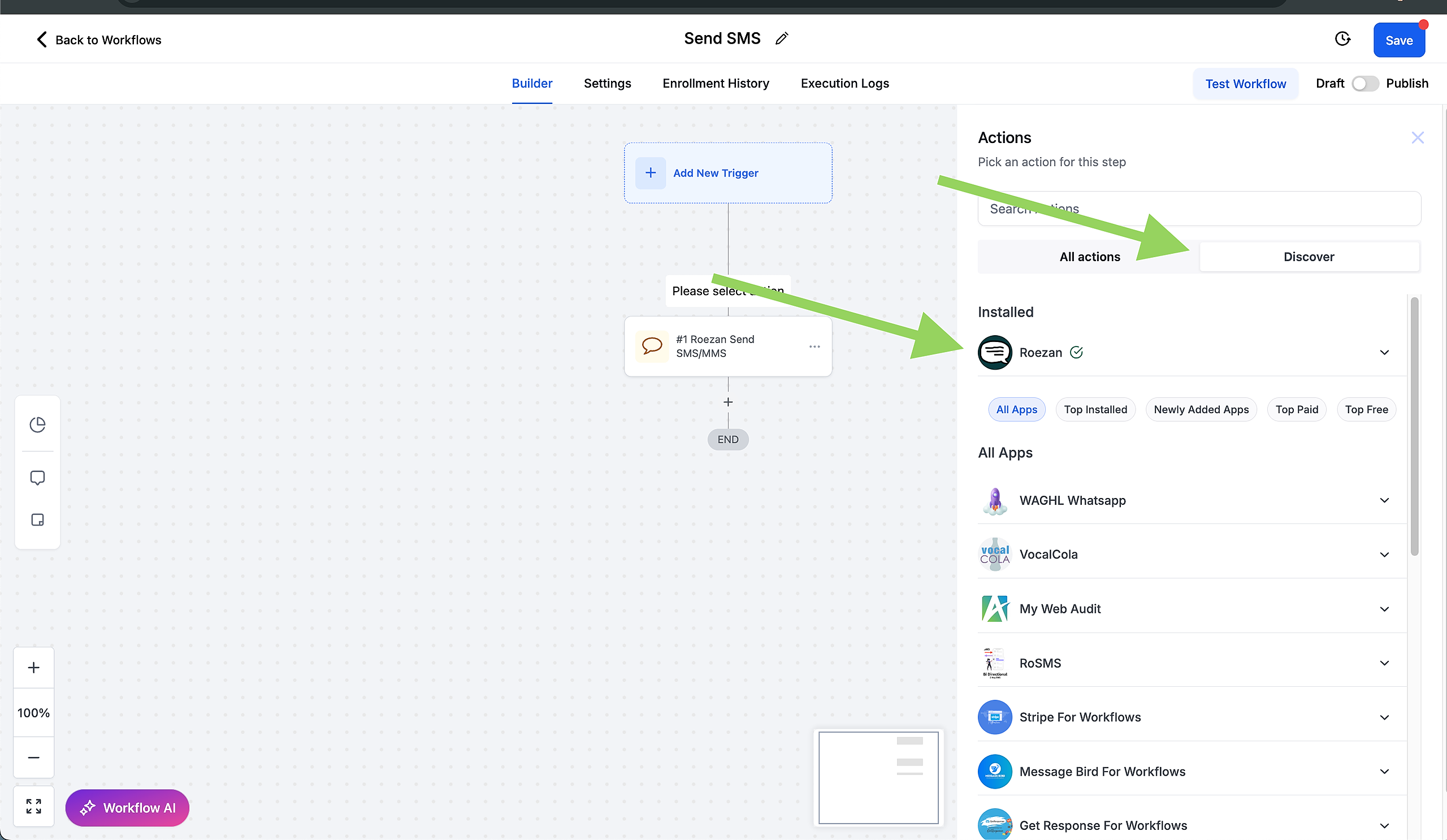
4. If you've already used it, search Roezan at the top, or scroll to the bottom to find the Roezan actions
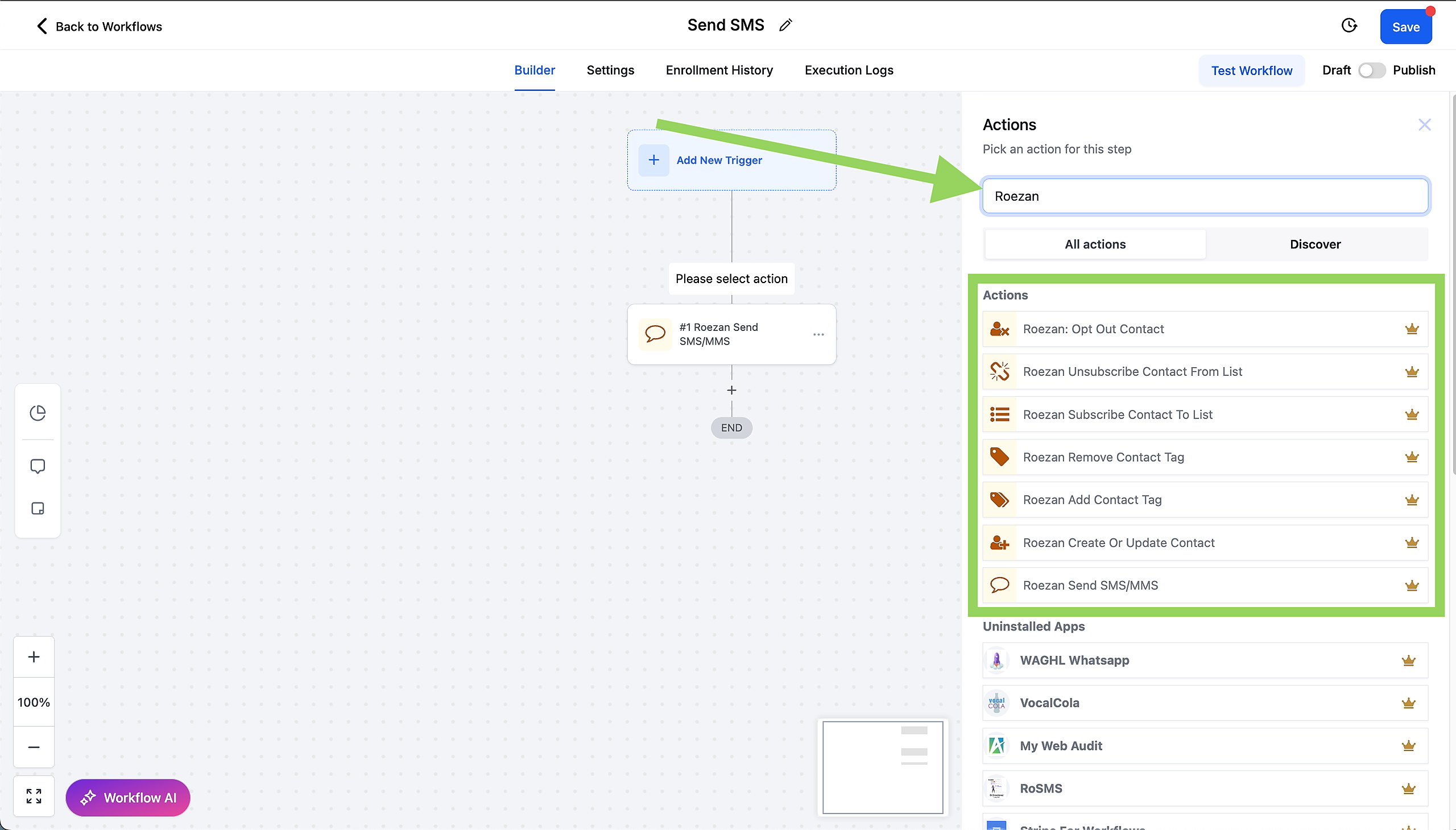
4. Select the Action you'd like
5. Enable the workflow and send contacts through!
Note On GHL Wait Steps "Skip Outbound Communications"
Note on GHL Automation Time Window Settings:
If you're using the GHL Automation Time Window, it's important to note that it only applies to internal GHL communication actions, not all actions. (source)
If you want to gate a sending window for Roezan actions, you can set a wait step prior to any Roezan send message actions.
This will ensure GHL does not trigger an outbound message outside a specific window.
Sending Conversational Messages In GHL With Roezan
You can send conversational, or one-on-one messages inside both the Conversations View as well as the individual Contact View.
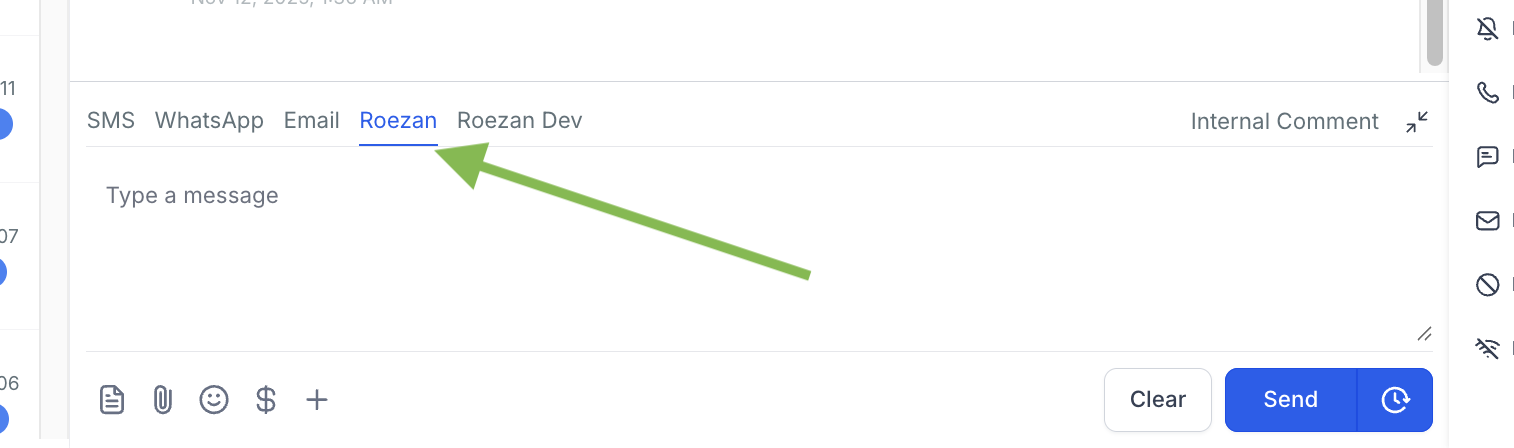
In the message type at the bottom of the conversation, click the "Roezan" tab like pictured below:
International Texting With GHL
Roezan enables international texting with GHL if you have added International Phone numbers to your Roezan account.
See more on Roezan International Texting Here.
Roezan will automatically detect the contact country dialing code and route the message appropriately through the correct number, all seamlessly.
For example:
US & CA (+1) Contacts will be routed through your Roezan US Phone Number
UK (+44) Contacts will be routed through your UK Phone Number
AU (+61) Contacts will be routed through your AU Phone Number
There is no need to select a phone number in the workflow actions or Conversation send message, it will automatically route.
Manually Connecting Contacts
GHL and Roezan contacts are typically automatically connected, and sync message as long as an action is started via GHL (any action like send sms, add tag, add list etc).
However, if the connection ever fails, or you need to connect a Roezan contact to a GHL contact, you can create the connection manually.
Step 1: Search for the contact in Roezan
Search for the contact in Roezan and open up the contact in 'Conversations'
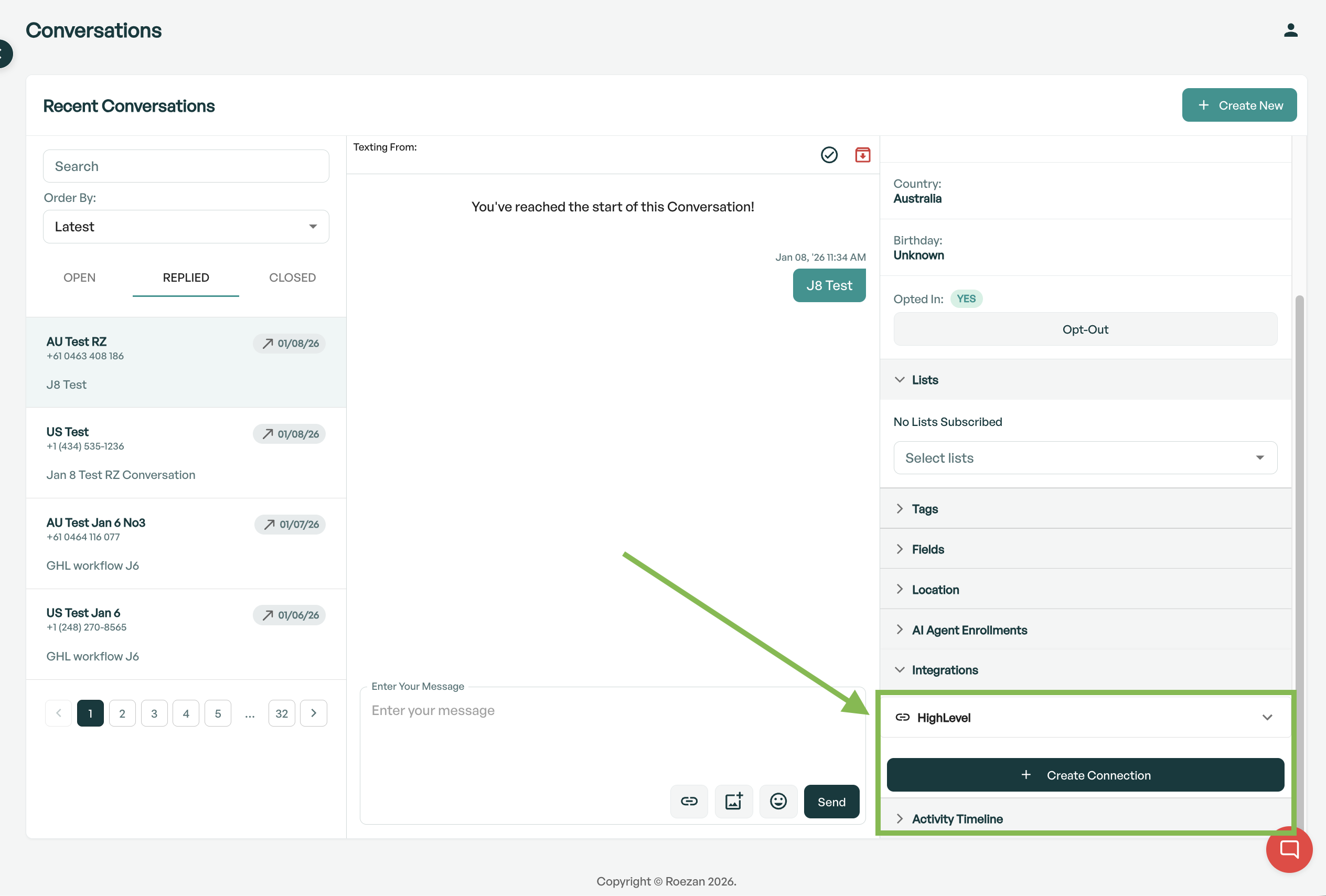
Step 2: Click 'Create Connection'
In the right hand sidebar under "Integrations" click "Create Connection"
Step 3: Fill In Details With GHL Unique Contact ID
Select 'HighLevel' as the integration and for the unique contact ID use the GHL contact ID.
You can find the GHL contact ID by visiting the appropriate contact in GHL and grabbing the ID in the URL.
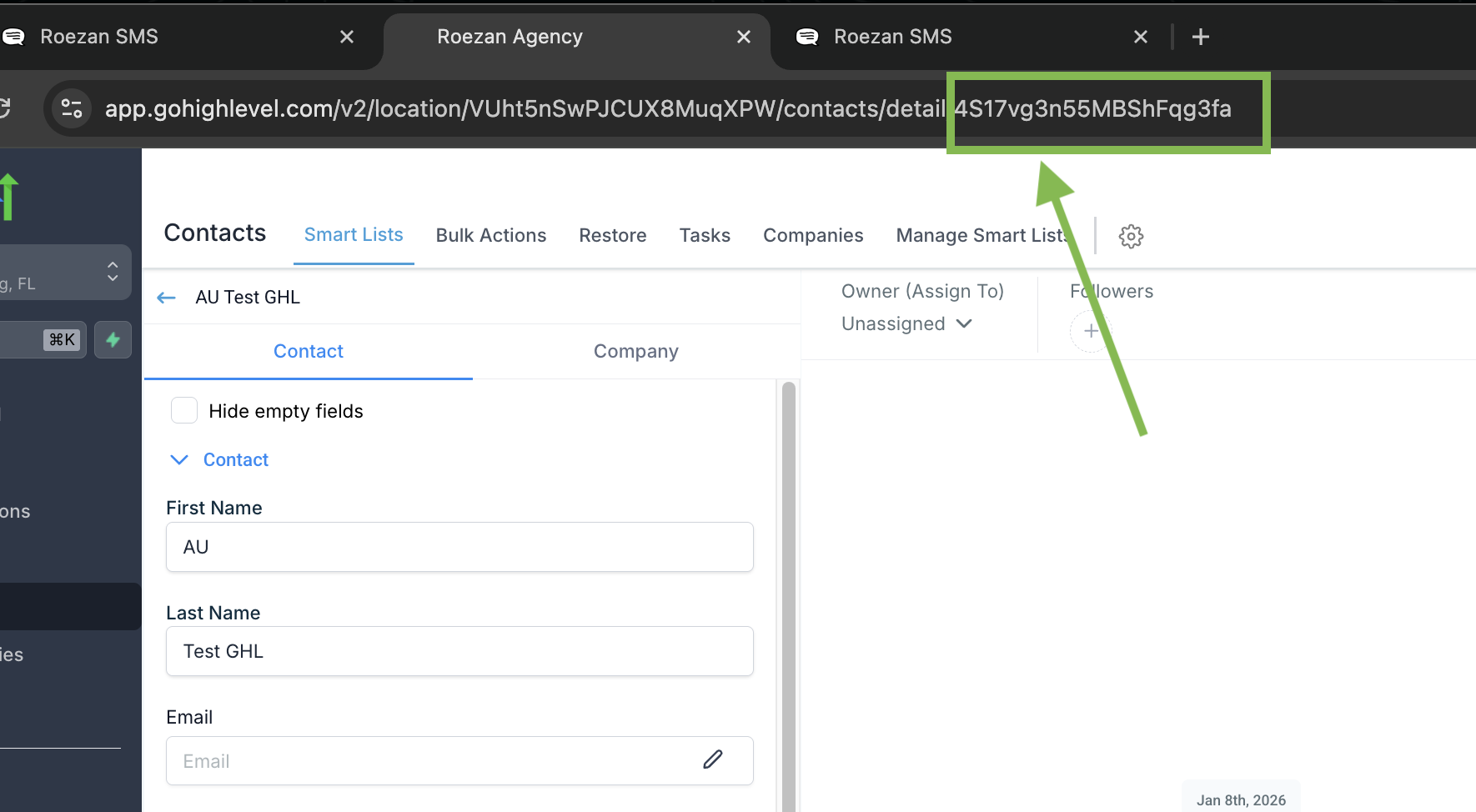
The contact ID is the last string in the URL.
It should look something like this: 4S17vg3n55MBShFeg3fa
Paste it into the modal and click Create Connection.
Step 4: DONE!
If you create the connection successfully, it will appear in the integrations section and will sync 2-way messages (both inbound and outbound)
Note: This will not sync messages retroactively, only going forward.
Additional Features & Functionality
Sync Contacts To Roezan (Optional)
If you'd like new contacts to automatically sync to Roezan, you can enable this feature in the GHL Integration Settings.
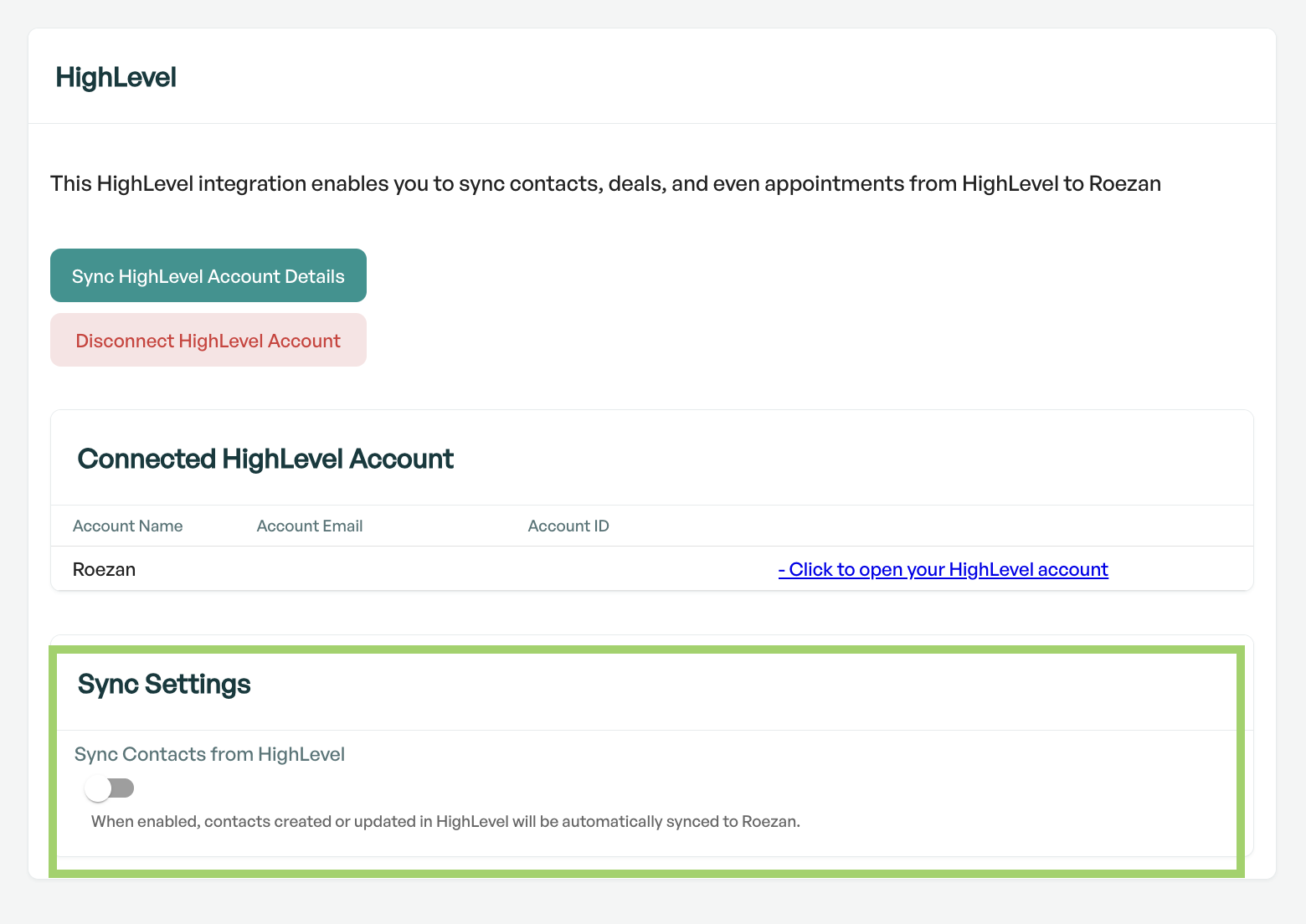
Quick warning: Make sure you collect consent before enabling this feature. Alternatively, you can leave this off and use GHL automations to add in specific contacts (vs. syncing all new contacts.)
Auto-Opt Out Roezan Contacts When SMS DND is enabled in GHL
As an additional measure to help with compliance, if a contact in GHL has the SMS set to DND, Roezan will opt out the contact in Roezan.
FAQ / Troubleshooting
Q: I can't get Roezan to connect to GHL when I set it up and paste the API Key.
A: Make sure your using the Roezan API key found on your Roezan account, not the GHL API key
Q: I don't see Roezan as an available app.
A: For Roezan to work, if you're using a subaccount, "premium features" must be enabled. See here on how to enable GHL Premium Features.
Q: What are Premium Actions?
A: GHL charges for "premium actions" when you run third party app actions in GHL automations - This is not a Roezan charge, this is from GHL.
If you will be running a lot of GHL Roezan actions, you can get one of their Premium Action packages (Workflow Pro Plan) that will save some money.
Q: My Roezan app isn't working for GHL triggers or Roezan actions.
Please check to make sure you have an active connection in your Roean app.
In GHL go to App Marketplace > Roezan > Click "External Connection" and make sure you have a connection. If not, hit "connect"
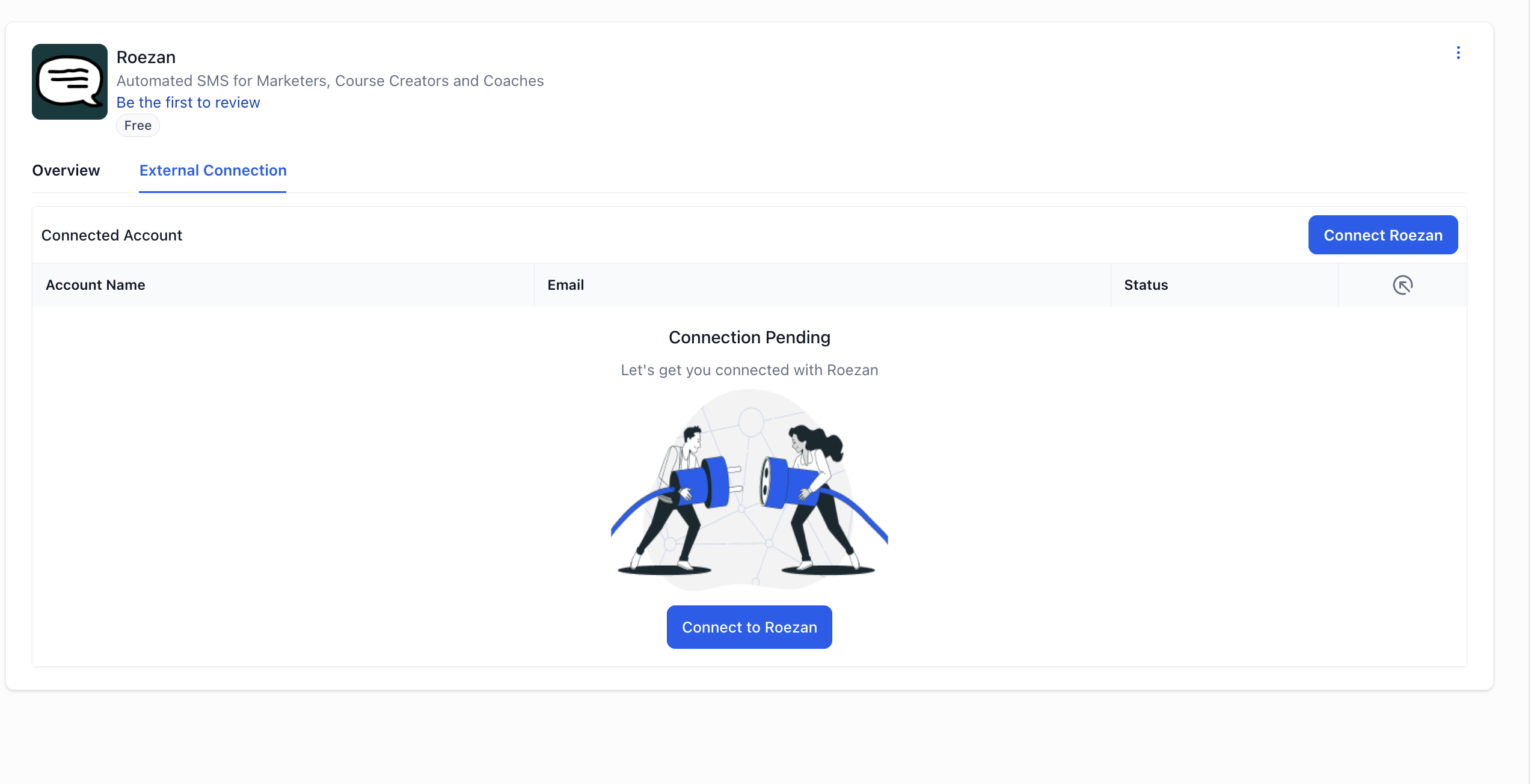
Q: Roezan Messages Aren't Syncing To GHL, Or Show Up Later
There are 2 potential GHL limits to be aware of regarding message syncing but mostly apply to large volumes.
GHL Burst Limit (Sync Speed)
GHL limits how quickly we can sync messages over to them, so if you're sending a large batch of messages from Roezan, it may take a few minutes for all of them to appear in GHL.
Most messages are sync'd in seconds of sending, so this only applies to large volumes.
This only affects how soon messages show up in GHL, but it has no impact on how fast your messages are actually delivered to recipients.
GHL's standard sync rate is 10 messages per second. We've arranged a higher limit for Roezan specifically: 20 messages per second.
GHL Daily Sync Limit
GHL also caps how many messages can be synced in a single day. The standard limit is around 200,000 messages/day, but we've had this raised for Roezan to roughly 600,000 messages/day.
That's more than enough for most senders. If you're planning a launch or a big event, or you expect to regularly send well above this amount, reach out to our support team and we'll work with you.
And if you do go over your daily limit, nothing gets lost: any extra messages are held in the queue and synced automatically as more quota frees up.