Connect Kit and Roezan
Send texts from your Kit visual automations with Roezan. Once connected, Roezan actions sit alongside your email steps, so you can create contacts, send messages, add tags, manage Roezan list memberships, and opt contacts out of texts.
You can also start a Kit automation when a linked contact replies to your Roezan number or opts out of texts. Use the same connected Kit and Roezan accounts throughout setup.
Before you start
A Kit account you can sign in to.
A Roezan account with a sending number, available message credits, and a user who can manage integrations.
Kit integration access enabled for your Roezan account. If you see Available by request, contact Roezan support before installing.
Your subscribers’ phone numbers, including country code, in a Kit custom field. Roezan creates Roezan Phone Number during setup; you still need to put numbers in it.
Install option A: start in Kit
You can install from either app. Both routes connect access in both directions and finish on Kit’s Roezan app page.
1. Find Roezan in Kit
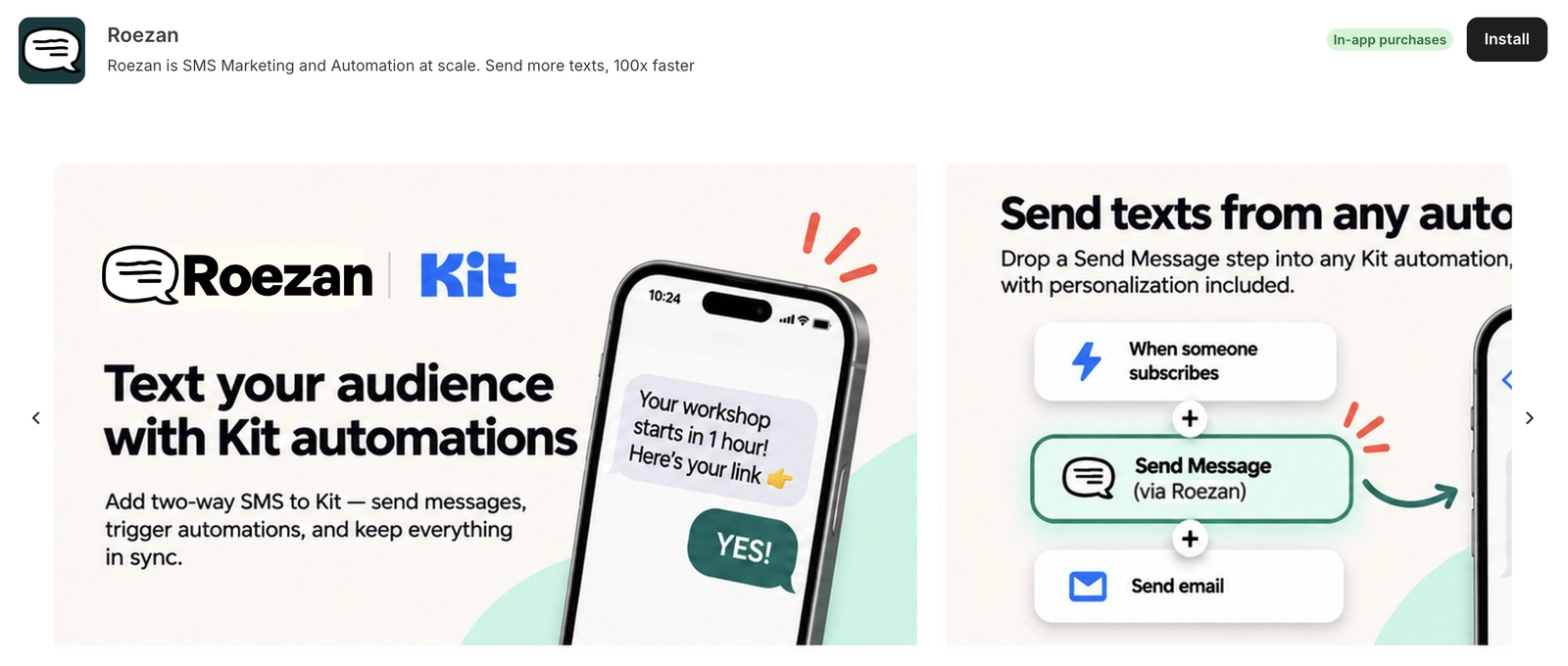
In Kit, open Apps or the App Store, search for Roezan, and open its listing. Click Install.
2. Approve Kit in Roezan
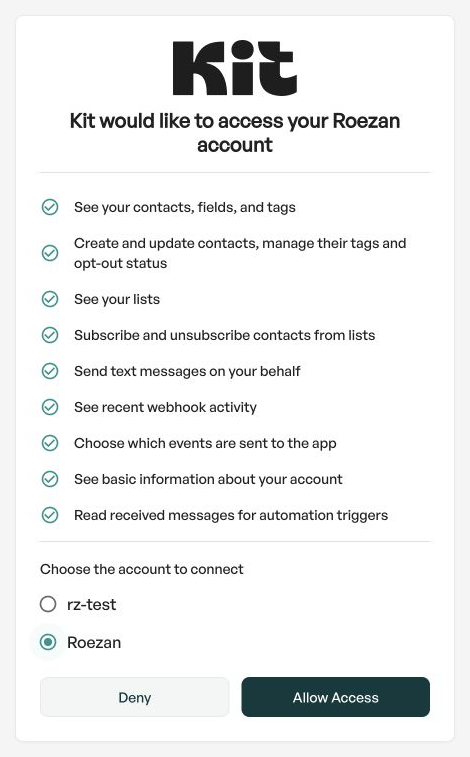
Sign in to Roezan if asked. On the approval screen, choose the Roezan account you want to connect, review the requested permissions, and click Allow Access.
3. Approve Roezan in Kit
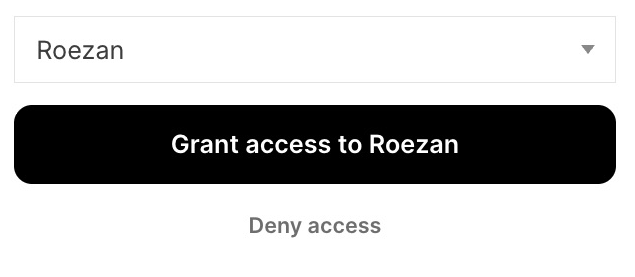
Sign in to Kit if asked, review the account and requested access, then click Grant access to Roezan. Complete any acknowledgment Kit requires.
4. Confirm the installation
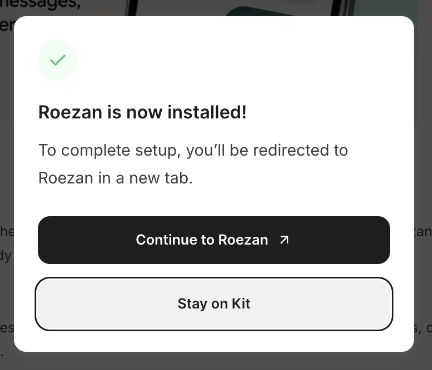
Finish on the Roezan app page in Kit with the installation success message.
If you manage several accounts, check the account names at each approval screen. Choose the same Roezan account whenever Roezan asks which account to authorize.
Install option B: start in Roezan
1. Open Kit in Roezan
In Roezan, go to Integrations, open Kit, and click Connect Kit Account.

2. Complete both approvals
Choose the Roezan account to connect and click Allow Access. Sign in to Kit if asked, review Roezan’s access request, and click Grant access to Roezan. Finish on Kit’s Roezan app page with the success message.
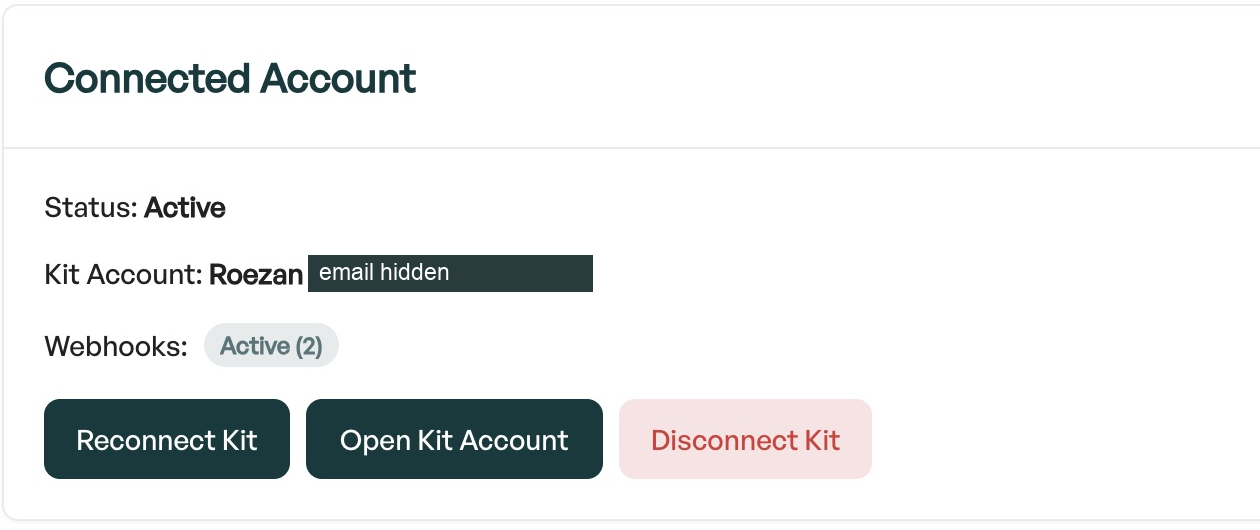
To confirm the connection, return to Integrations > Kit in Roezan. The Connected Account card shows Status: Active and the connected Kit account. Check the webhook status too; a failed status needs attention before relying on subscriber events.
Map your fields
Roezan needs a phone number to identify a subscriber as a contact. During setup, it adds the Kit custom field Roezan Phone Number, whose key is roezan_phone_number, and creates an enabled mapping to Roezan’s Phone field.
Save numbers with their country code, such as +15551234567. Subscribers without a number in the selected phone field cannot complete Roezan actions.
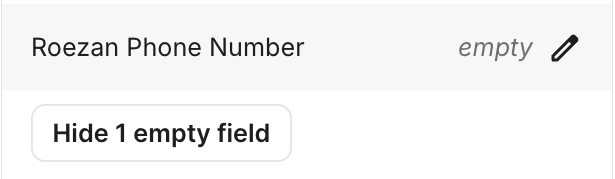
If you already had an enabled Phone mapping, Roezan keeps it. You can continue using that Kit field, or switch to Roezan Phone Number. Creating the new field does not copy numbers from another field into it.
To review or add mappings, open Integrations > Kit > Field Mapping:
Choose a Kit Field, such as Email Address, First Name, or a Kit custom field.
Choose its Roezan Field: First Name, Last Name, Email, Phone, Birthday, State, Timezone, Country Code, or a Roezan custom field.
Click Add Mapping. Use the Enabled switch to pause a mapping without deleting it.

Email Address and First Name have default mappings. Additional mappings let you bring over the information your forms collect. For birthday values, use a valid date in YYYY-MM-DD format.
If the card says Roezan could not create its phone field, click Reconnect Kit to retry, or map an existing Kit field containing phone numbers to Phone.
Installing the app does not bulk import your existing Kit subscribers. Use Create or Update Contact in a Kit automation to add or update the subscribers who pass through that step.
Use Roezan in Kit automations
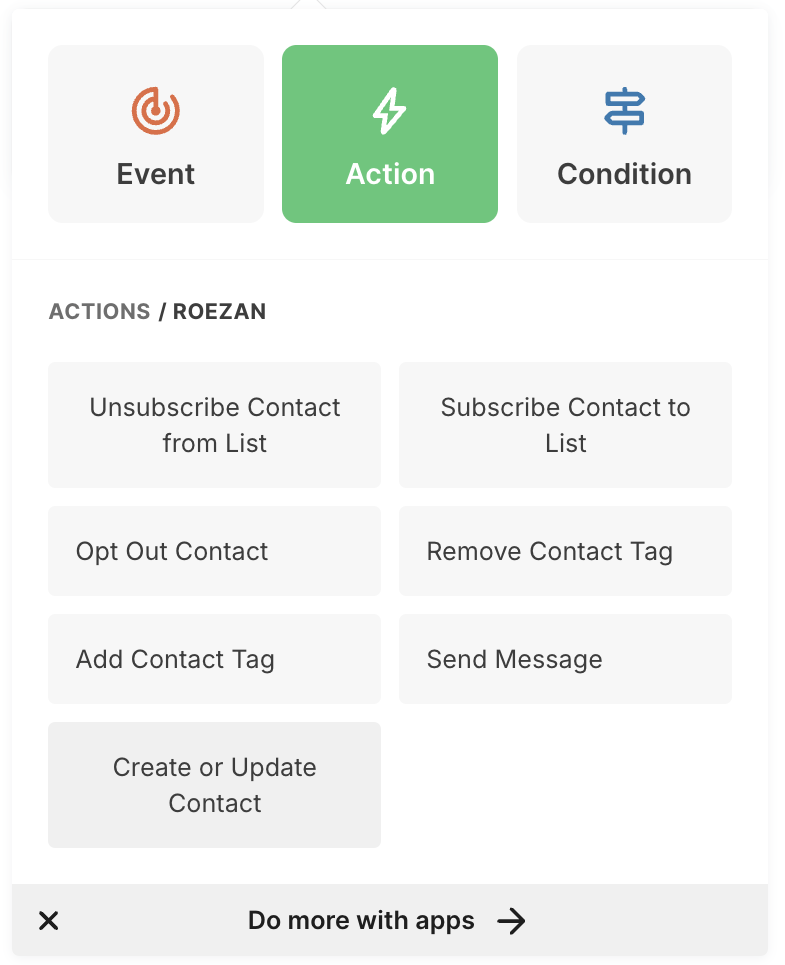
Open Kit’s Visual Automations, create an automation or open an existing one, add an action, and choose Roezan. Configure each step before activating the automation.
Available actions
Action | What it does | What you set |
|---|---|---|
Create or Update Contact | Adds a subscriber to Roezan or updates an existing contact | Optional tags, lists, and profile field overrides |
Send Message | Queues a text to the contact | Message; optional HTTPS media link |
Add Contact Tag | Adds a Roezan tag | Tag |
Remove Contact Tag | Removes a Roezan tag | Tag |
Subscribe Contact to List | Adds the contact to a Roezan list | List |
Unsubscribe Contact from List | Removes the contact from a Roezan list | List |
Opt Out Contact | Opts the contact out of texts in Roezan | Phone field; optional email field |
Every action has a required phone field setting, defaulting to roezan_phone_number. Enter the Kit field key containing the subscriber’s number, not a literal number or the field’s display label. If you use another phone field, update this setting in every Roezan step that should read it.
Older saved steps with a blank phone setting use your enabled Phone mapping. For new steps, keep the default or enter your actual field key. The optional email setting defaults to email_address, Kit’s normal email field.
Create or Update Contact also accepts first name, last name, and birthday field keys. Selected tags and lists are added; memberships you did not select are kept. Create tags and lists in Roezan first so they appear in Kit’s pickers.
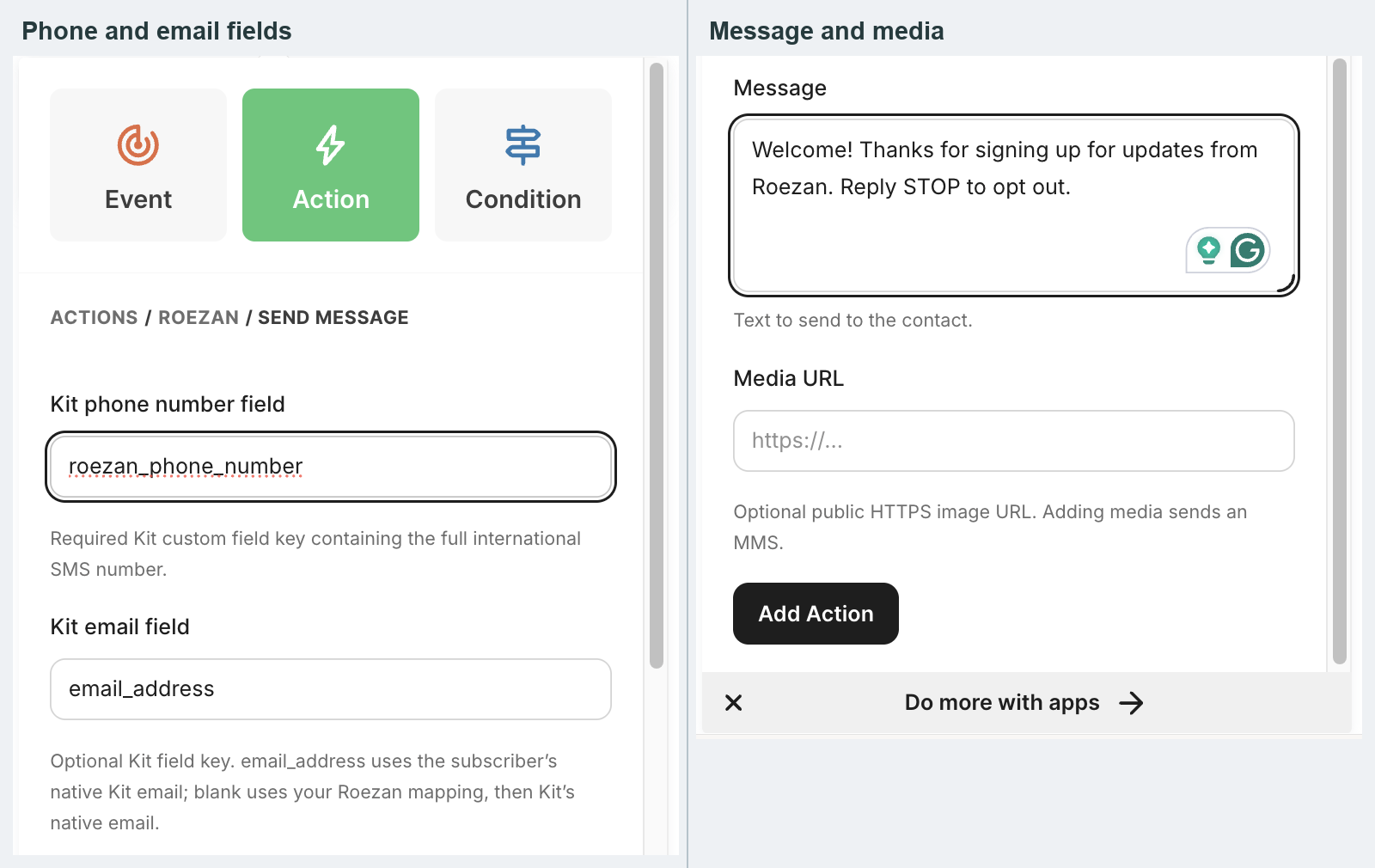
Start with Create or Update Contact before sending or changing memberships for a new contact. Picture messages need an HTTPS image link, with media no larger than 525 KB per message.
Sending follows your normal Roezan eligibility and billing rules. Opted-out contacts cannot receive texts. A successful Send Message step means the text was queued; check its delivery status in Roezan’s Conversations.
Example: send a welcome text
Choose the subscriber entry point you normally use in Kit, such as joining your welcome automation.
Add Create or Update Contact. Set the phone field to the key containing that subscriber’s number, and optionally choose a Roezan tag or list.
Add Send Message with the same phone key and a short welcome message identifying your business.
Test with your own subscriber record and phone before enrolling your audience.
Only send to subscribers who have agreed to receive your texts. A phone number in Kit is contact information; it does not by itself establish SMS consent.
Events that start a Kit automation
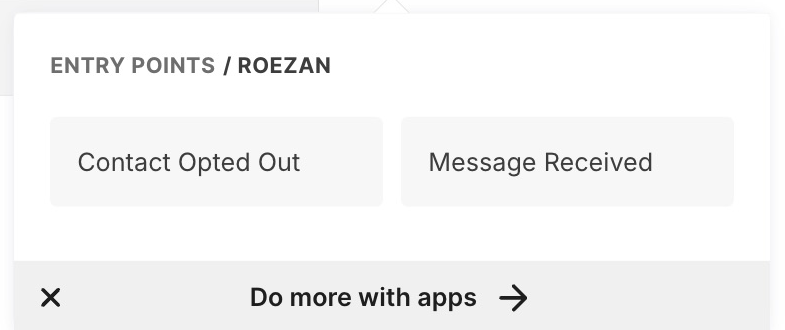
Event | Starts when |
|---|---|
Message Received | A linked contact texts your Roezan number |
Contact Opted Out | A linked contact is opted out of texts in Roezan |
These events require a contact already linked to a subscriber in the connected Kit account. Running a Roezan action for that subscriber can establish the link. An unrelated contact created only in Roezan does not automatically become a Kit subscriber.
Kit checks periodically for new events, so the automation may not start immediately after a reply or opt-out.
Test your connection
Use one Kit subscriber with a phone you control, including country code.
Run Create or Update Contact and confirm the phone, name, email, and selected memberships in Roezan.
Send one test text. Confirm its delivery status and receipt on your phone.
Reply and allow Kit time to check for the Message Received event.
Test Opt Out Contact last. Confirm the contact’s status in Roezan and that further sending is blocked.
Troubleshooting
A subscriber did not get a text
Check the phone field key in that specific action, the subscriber’s value including country code, and the contact’s opt-in status. Confirm Create or Update Contact ran first for a new contact, your account has credits, and the message’s delivery status in Conversations.
Tags or lists do not load, or steps fail after installing
Open Integrations > Kit in Roezan and click Reconnect Kit. Complete installation again, choosing the same Roezan account throughout. If the problem continues, contact support.
The card shows Webhooks: Failed
Subscriber events from Kit may not reach Roezan. Disconnect and reconnect Kit to retry webhook setup, or contact support.
What happens when someone unsubscribes in Kit?
Kit email unsubscribes are used to opt the matching Roezan contact out of texts when the subscriber event is processed. The subscriber needs a mapped phone number matching that contact.
Disconnect Kit
In Roezan, go to Integrations > Kit.
Click Disconnect Kit, then Disconnect to confirm.
Contacts already in Roezan are kept. Kit changes stop reaching Roezan, and Roezan actions in Kit need an active connection to run. Reconnect using Connect Kit Account when you are ready.