
NOTE: Kajabi integration access is currently in beta, and you must request it to begin setting it up on your Roezan account.
Connect Kajabi to add people to Roezan and start follow-up when someone submits a form or makes a purchase. You copy a webhook URL from Roezan into Kajabi, then create rules that decide what happens when each event arrives. No API key or app installation is needed.
Before you start
Use a Kajabi account with webhook access.
Make sure you can manage integrations in Roezan and edit the relevant settings, forms or offers in Kajabi.
If Kajabi is missing from your Roezan integrations, contact Roezan support to check availability for your account.
Decide which event should start your follow-up. You only need to configure the webhooks you plan to use.
Event | What to connect |
|---|---|
Form submitted | Each Kajabi form you want to use |
Offer purchased | Each Kajabi offer you want to use |
Payment succeeded | A site-wide Kajabi webhook |
Cart purchase | A site-wide Kajabi webhook |
One checkout can send more than one kind of event. For example, an offer purchase and a successful payment may both reach Roezan. Choose one event for a particular follow-up so overlapping rules do not start it twice.
1. Connect Kajabi in Roezan
In Roezan, open Integrations → Kajabi.
Click Connect Kajabi.
Open Set up your Kajabi connection to see the four webhook URLs.
Copy the URL for the event you want to use.
Keep these URLs private. Use the complete URL copied from your own Roezan account.
2. Choose how contacts are added
Under Contacts, review these settings:
Add new people from Kajabi as contacts is on by default. Each event can add its person, even when no rule matches. Turn it off to work with existing Roezan contacts only.
New contacts with a phone number defaults to Not opted in to texts (recommended). Adding a phone number to Kajabi does not, by itself, opt that person in to texts in Roezan. Choose Use this account’s opt-in setting only if your Kajabi forms and checkout ask people to agree to receive texts.
Roezan matches people by phone number. When Kajabi sends no usable phone, Roezan can match an existing contact by email. An ambiguous email match is skipped rather than choosing a contact at random.
If your account supports email-only contacts, a new person without a phone can still be added, tagged, subscribed to a list or enrolled in an automation. Email-only contacts cannot receive texts. On accounts without email-only contacts, a new person without a phone is skipped.
Existing contacts keep their saved details and opt-in status. A Kajabi event does not opt an opted-out contact back in.
Submitting the same person again can match the existing contact without replacing its saved name, including when the person is an email-only contact.
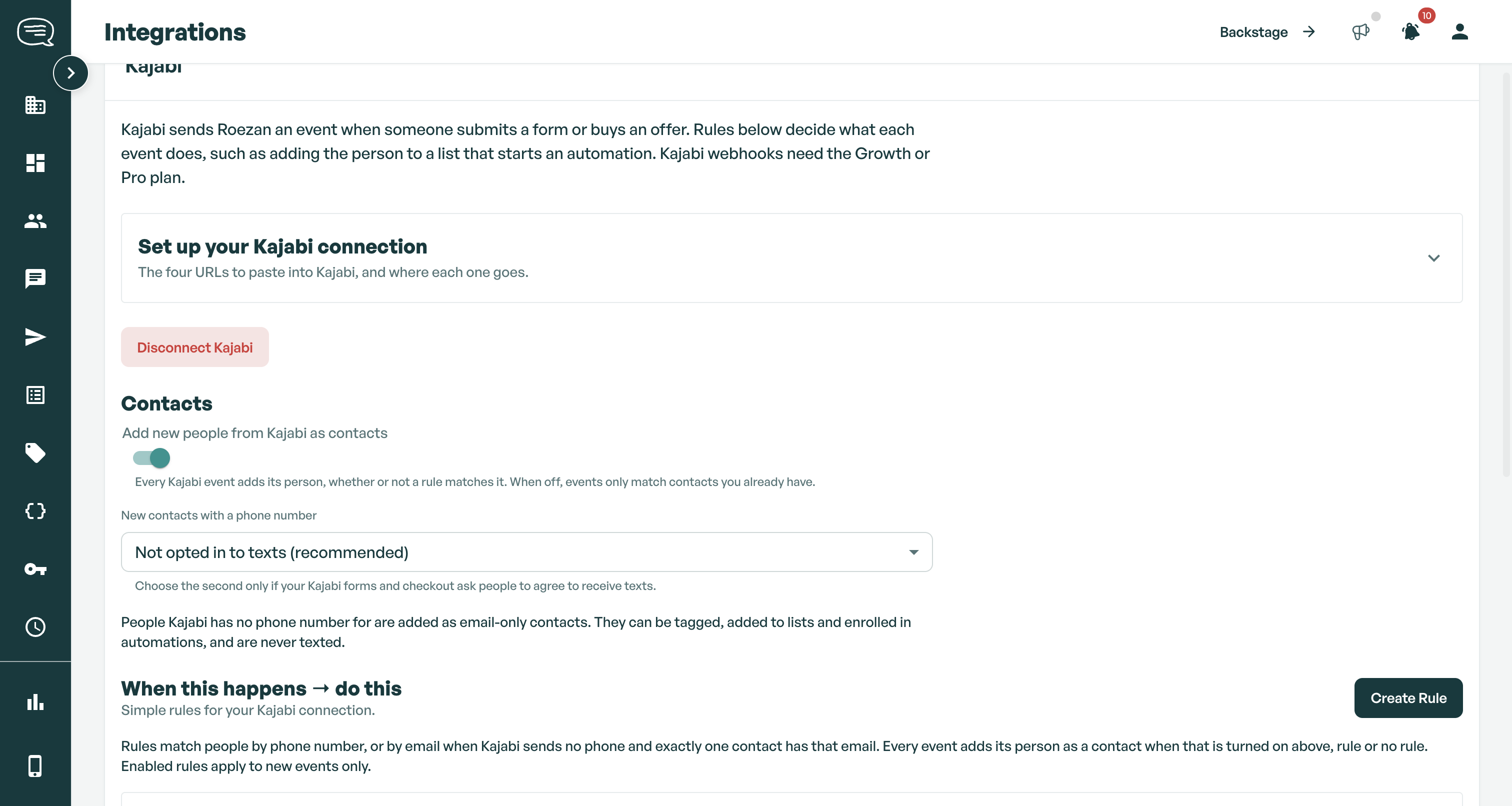
Review contact creation and the new-phone opt-in choice before configuring your rules.
3. Add the webhook in Kajabi
Payment succeeded or Cart purchase
In Kajabi, open Settings → Integrations & Webhooks.
Open Webhooks, then click Create webhook.
Choose Payment Succeeded or Cart Purchase.
Paste the matching URL from Roezan.
Click Add webhook.
Repeat these steps if you need the other site-wide event. Use the Payment succeeded URL for Payment Succeeded and the Cart purchase URL for Cart Purchase.
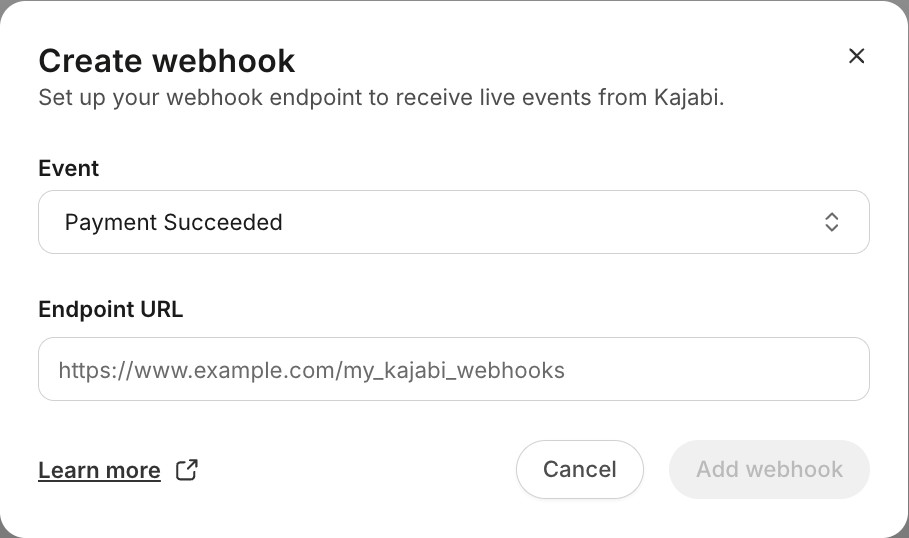
Choose the event, then paste its matching Roezan URL before adding the webhook.
Form submitted
In Kajabi, open Marketing → Forms and open the form you want to connect.
Open More actions → Webhooks.
Paste Roezan’s Form submitted URL into Webhook URL.
Click Save.
Repeat for each form you want to connect.
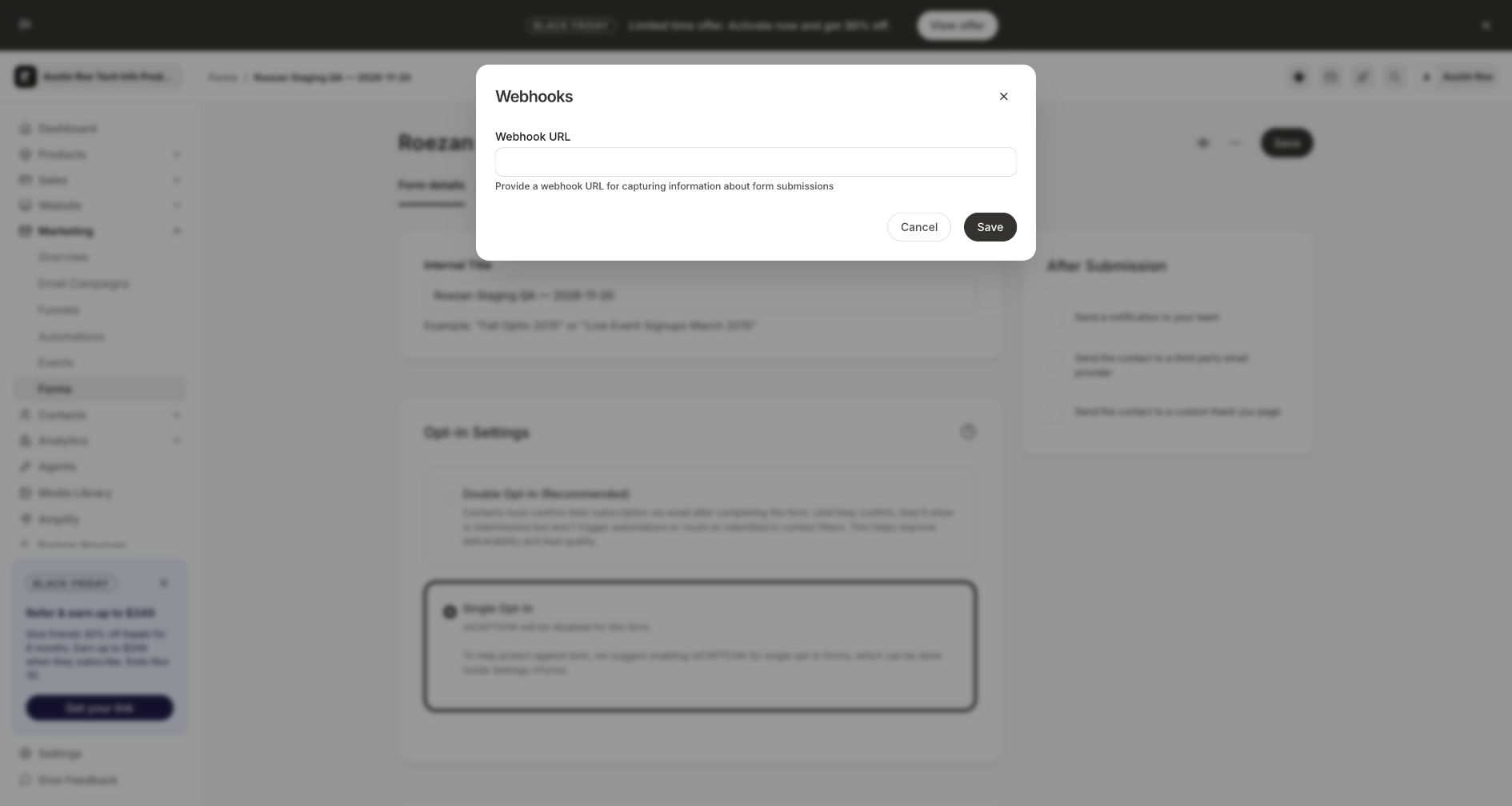
The Webhooks option belongs to the individual form. Paste its Form submitted URL here.
To collect a phone number, open Add Form Field → Phone Number in the form editor. Check the form people actually see to confirm that the field is present. Collecting a phone number does not change Roezan’s opt-in setting.
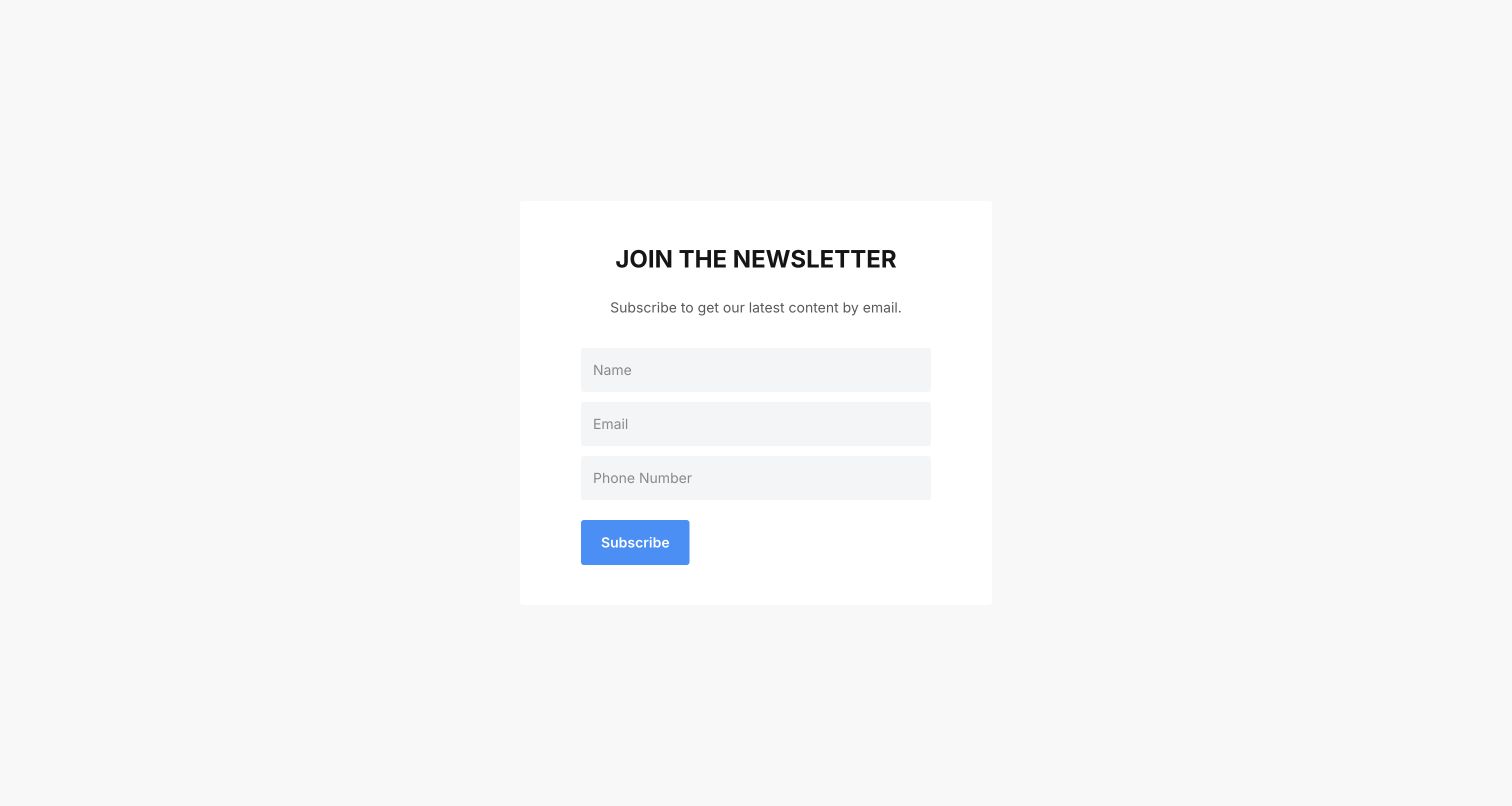
Check the displayed form after adding the Phone Number field.
Form filtering: Kajabi’s manual form webhook sends the form’s title without a form ID. This does not populate a specific form in Roezan’s picker. Choose Any form for now; the rule will apply to all forms sending events to this connection.
Offer purchased
In Kajabi, open Sales → Pricing → Offers and open your offer.
Open More actions → Webhooks.
Under Outbound Webhooks, paste Roezan’s Offer purchased URL into Purchase Webhook URL.
Click Save.
Repeat for each offer you want to connect. To collect a phone number, enable Phone Number on the checkout and check the checkout people actually see. Collecting a phone number does not change Roezan’s opt-in setting.
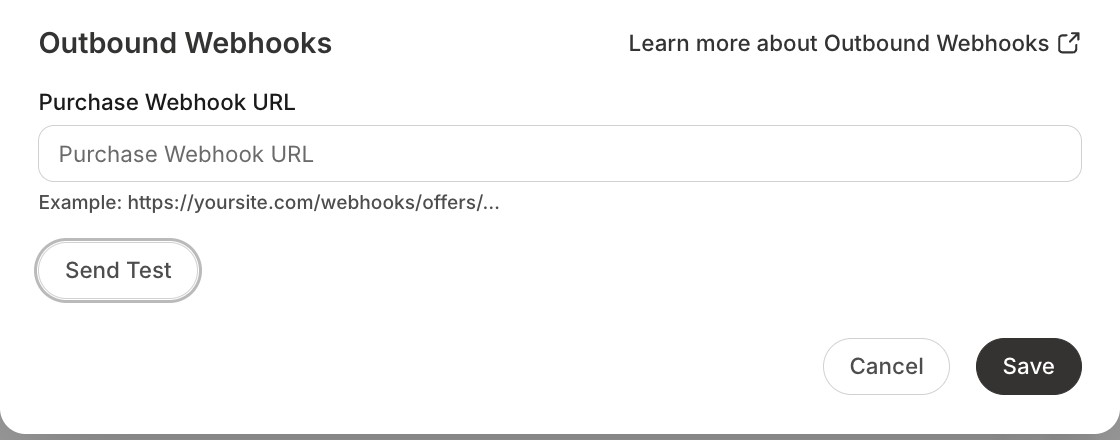
Use Purchase Webhook URL for the offer’s Roezan URL. The private URL is omitted from this screenshot.
4. Send a test and create a rule
Use Kajabi’s Send Test, where available, or make a test submission or purchase.
Return to Integrations → Kajabi in Roezan.
Under Recent Kajabi events, click View Events and check that the expected event arrived.
Under When this happens → do this, click Create Rule.
Name the rule and choose its event.
For Form submitted, choose Any form because manual form deliveries do not populate a specific-form choice. For an offer event, choose a specific offer or leave it set to any; an offer appears after Kajabi has sent an event identifying it. Cart purchase rules apply to the cart event without a form or offer selector.
Choose an action and its target: Add a tag, Remove a tag, Subscribe to a list, or Enroll in an automation.
Save the rule, then click Enable. New rules are saved paused.
Kajabi’s Send Test uses sample data. With Add new people from Kajabi as contacts on, a test delivery can add a sample contact. An actual submission or checkout with your own test identity is still needed to verify your live fields and follow-up.
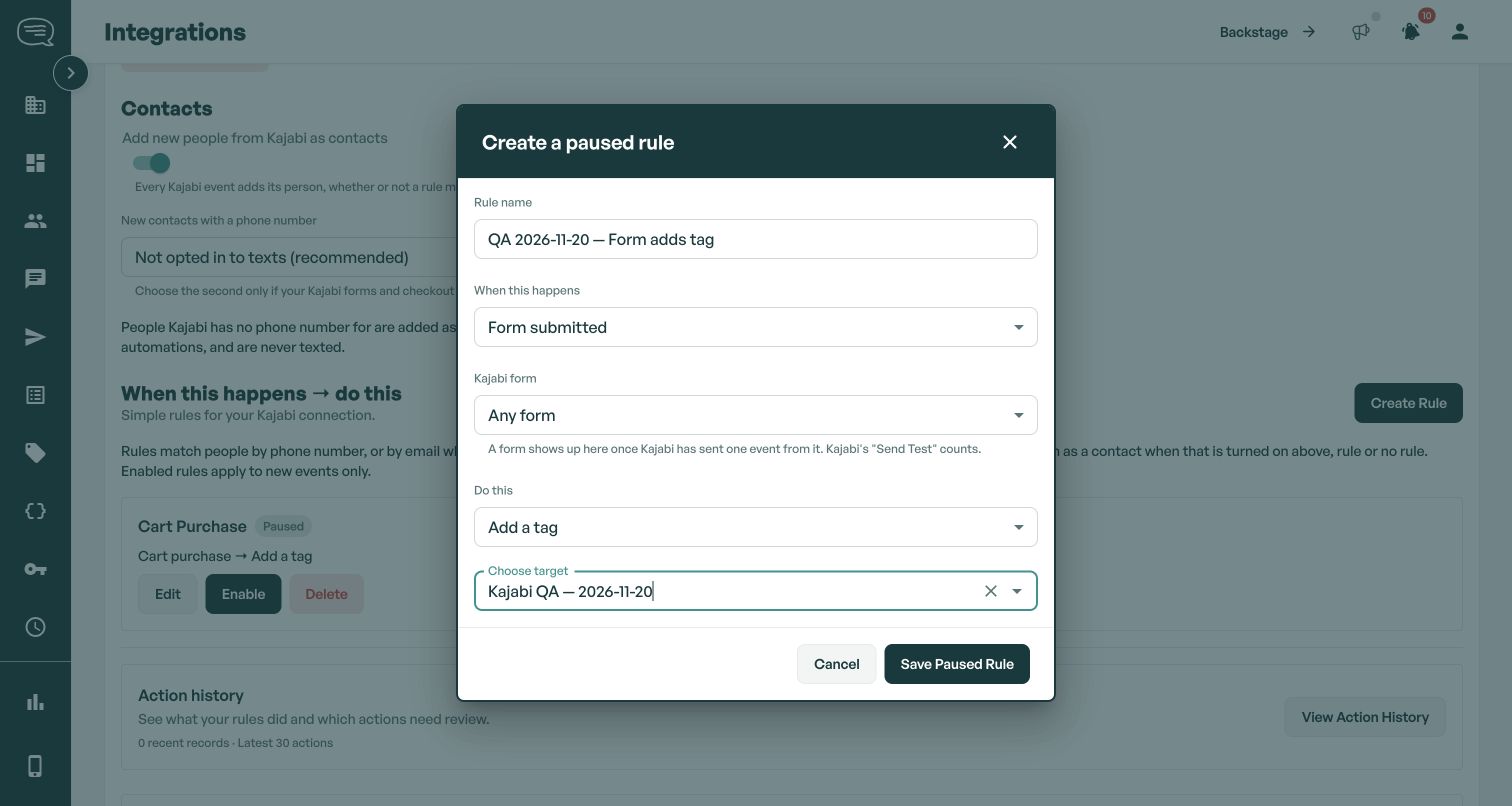
For a manual form webhook, choose Form submitted and Any form, then the action and target. Saving creates a paused rule.
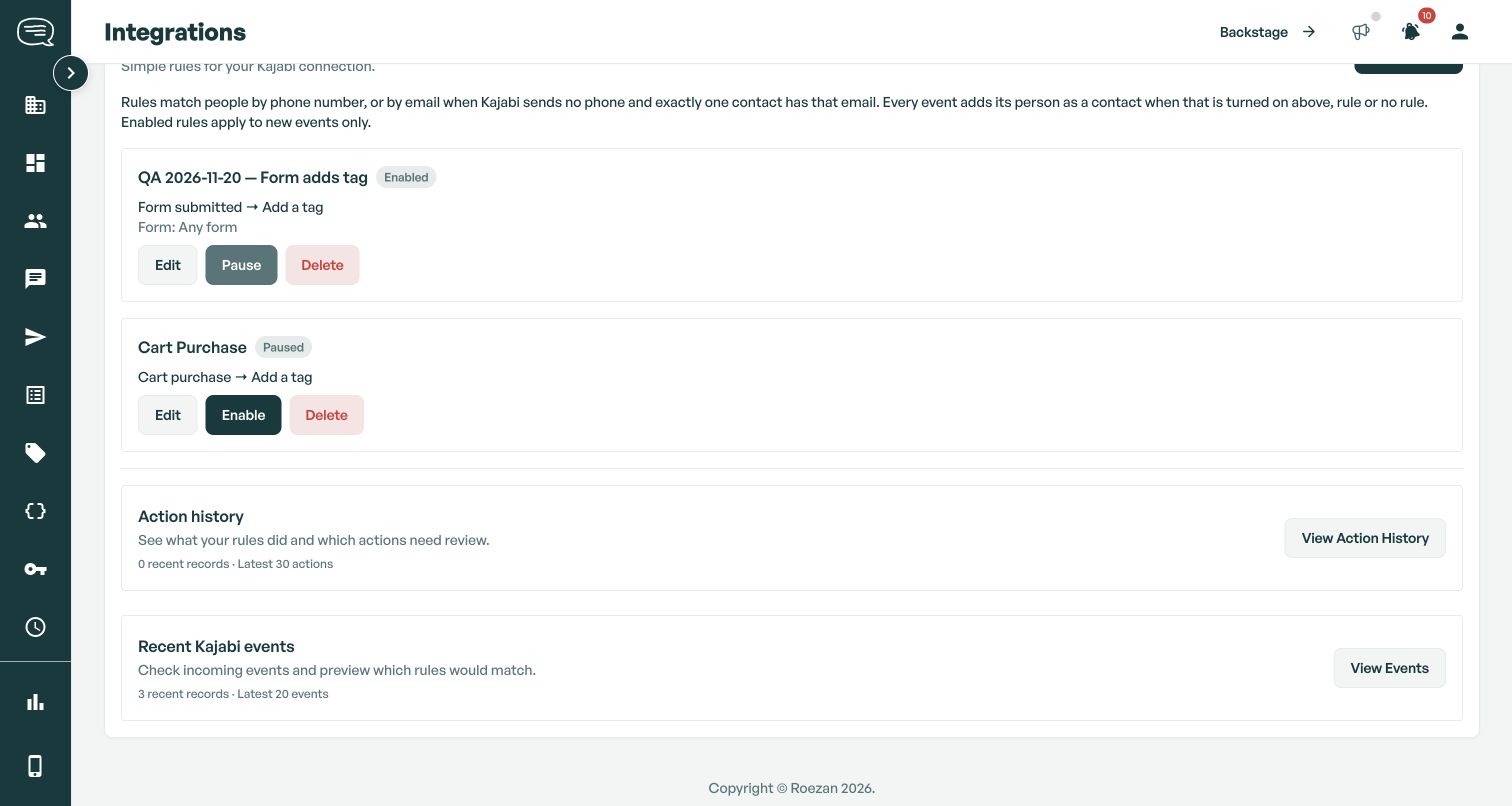
The Enabled label confirms that the form rule is ready for new events. Other rules can stay paused.
To send a text as follow-up, use a Roezan automation. A Kajabi rule can enroll the person in that automation, or subscribe them to a list that starts it. Texting still depends on the contact having an eligible phone number and the required opt-in status.
Rules apply to new events only. Enabling a rule does not run it against the test event you sent earlier or against historical Kajabi purchases and submissions.
5. Check the complete flow
Start with a test rule that adds a dedicated test tag or subscribes your test contact to a dedicated list. Check any automation attached to that tag or list before testing.
Enable your rule.
Create a new event in Kajabi using your own test contact. For a form, submit the actual form. For a purchase flow, use the intended checkout.
In Roezan, open Recent Kajabi events → View Events and find that new event.
Open Action history → View Action History and check the rule’s result.
Open the contact and confirm the expected tag, list membership or automation enrollment. Confirm the phone and opt-in status before testing a texting automation.
A received event proves Kajabi reached Roezan. A successful action and the corresponding change on the contact prove that your rule completed. Kajabi’s sample test alone does not prove the phone fields or purchase details on your live form or checkout.
Kajabi’s Preview & test checkout simulation can say that third-party integrations are not included, even when its summary labels a webhook Sent. Do not count that summary as delivery proof. Use Send Test to check a sample delivery, then an actual form submission or real checkout to verify the complete flow. A real free checkout can deliver its purchase event before the buyer finishes setting a password.
To test Kajabi Cart from a page, enable Cart in that page’s Header settings and turn on Show Header. If Cart checkout is disabled while you are signed in as the site administrator, open the published page in a private browser window and test as a customer. Check for a new Cart purchase event in Roezan; a free Cart checkout does not prove that Payment succeeded is connected.
Pause the test rule when you finish, then enable the rules you want to keep using.
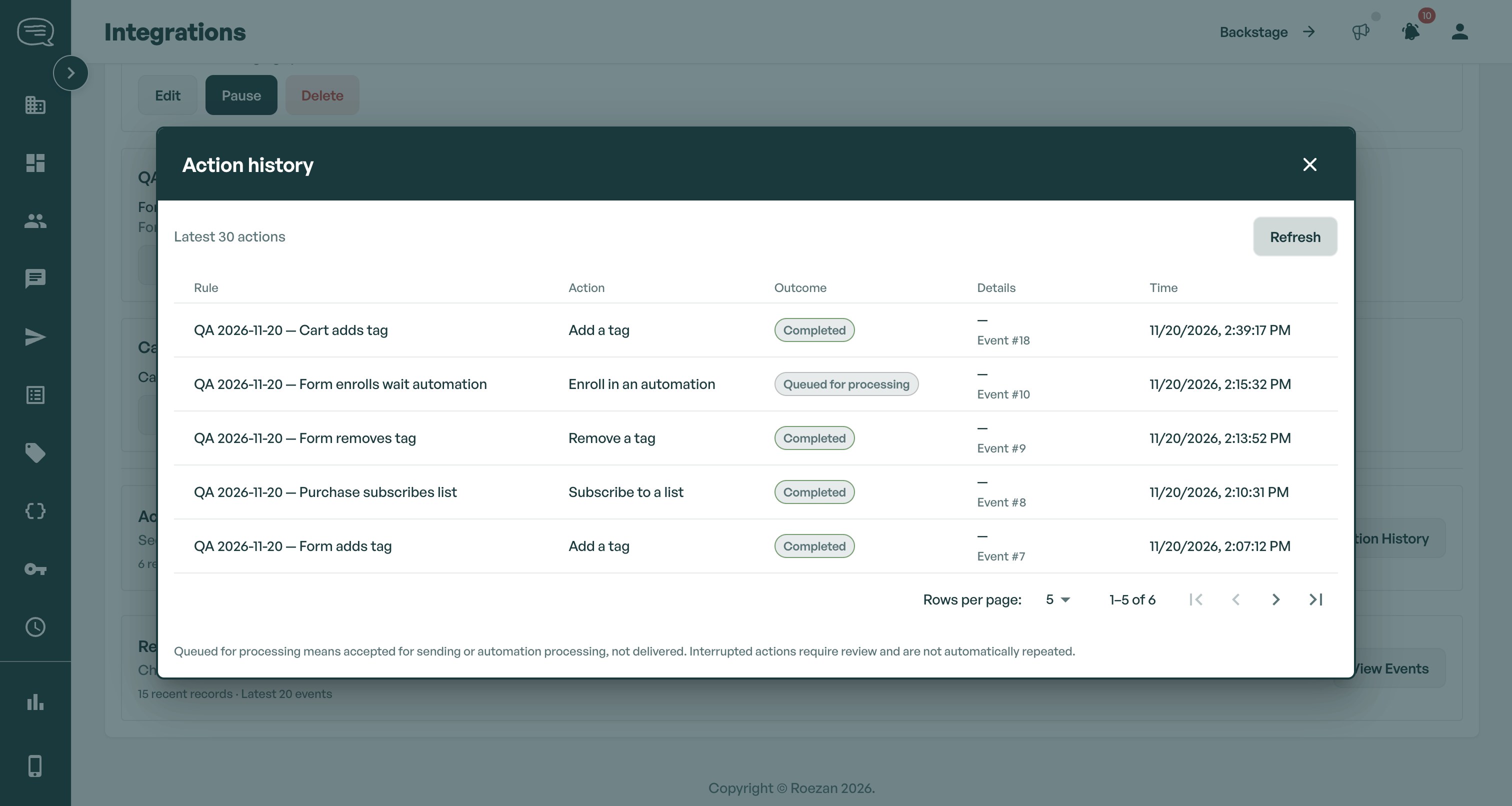
Tag and list actions show Completed, including the Cart add-tag rule. Queued for processing confirms an automation enrollment was accepted; inspect its automation run for completion.
Understand event and action statuses
Recent Kajabi events shows what arrived. Action history shows what the matching rules did. Check both, then confirm the result on the contact or automation run.
You can preview an event to see which person and rules would match under the current settings. Previewing does not create contacts or execute actions.
Status | What it means |
|---|---|
No matching rules | No enabled rule matched that event. If Add new people from Kajabi as contacts is on, the event can still add its person as a contact. |
Completed in Action history | The rule’s action finished. For a tag or list action, check the contact’s tag or list membership. |
Queued for processing | An automation enrollment was accepted for processing. Open the contact’s automation run to check whether the automation started and finished; this status does not mean the workflow completed or a text was delivered. |
Skipped | The action did not run. Read the details for the reason, such as a person who could not be matched or added. |
Roezan ignores an exact repeated delivery of an event it has already received, so that delivery does not run the rule again. Different events from one checkout can still match different rules; review overlapping purchase, payment and cart rules when planning your follow-up.
Troubleshooting
What you see | What to check |
|---|---|
No event in Roezan | Check that the webhook was saved in Kajabi, that its event matches the copied Roezan URL, and that you triggered the connected form, offer or checkout. |
A specific form is missing from the rule picker | Manual form webhooks send a title without a form ID. Use Any form for now. |
An offer is missing from the rule picker | Send an event identifying that offer first, then reopen the rule editor. |
Event arrived but no action ran | Check that the rule was enabled before the event arrived and that its event and form or offer conditions match. Review the action history for a skip or failure reason. |
No contact was added | Check Add new people from Kajabi as contacts. Also check whether Kajabi sent a usable phone or email and whether your account supports email-only contacts. |
A contact was skipped because of email | Check for multiple contacts sharing the email or an email that cannot identify a person. Resolve the contact identity before trying again. |
The contact exists but received no text | Check the automation enrollment and run history, the contact’s phone and opt-in status, and any conditions in the automation. The default Kajabi setting creates new phone contacts without opting them in. |
Follow-up started more than once | Check for overlapping rules across Offer purchased, Payment succeeded and Cart purchase. These are separate events that one checkout can generate. |
An older event did not run after enabling a rule | This is expected. Trigger a new event after enabling the rule. |
Replace URLs or disconnect
In Set up your Kajabi connection, Create new URLs replaces all four webhook URLs. The old URLs stop working immediately. Your rules, their enabled or paused state, contact settings and history are kept. Copy the replacements into every connected Kajabi form, offer and site-wide webhook, then test again.
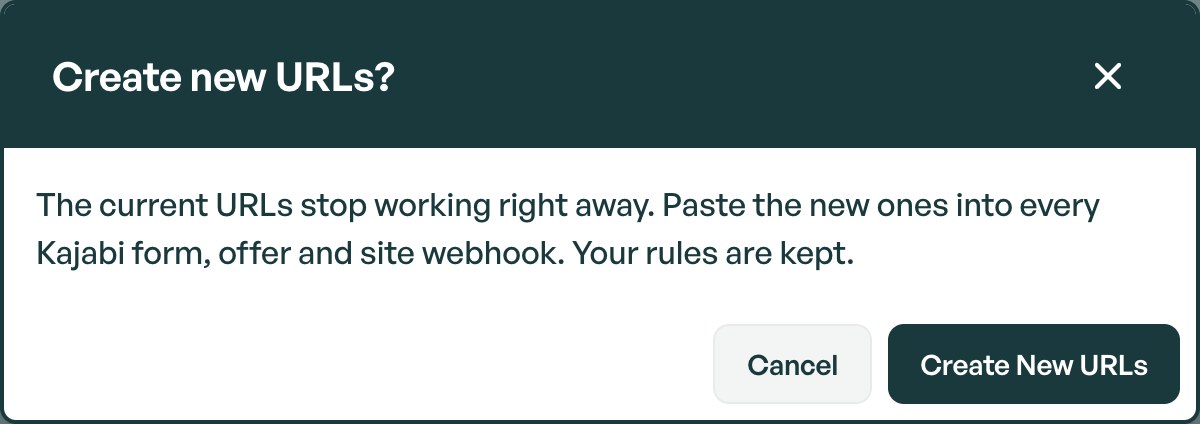
Creating new URLs immediately invalidates the current URLs. Your saved rules are retained.
For forms and offers, replace the URL in the existing webhook field and save. For Kajabi’s site-wide webhooks, create a replacement webhook with the new URL, verify its test event in Roezan, then remove the obsolete webhook entry. Repeat for each site-wide event you use.
Disconnect Kajabi stops the connection and pauses all its rules. Contact settings and event/action history are retained. The webhook entries you added in Kajabi remain there until you replace or remove them.
Reconnecting keeps the saved rules, settings and history, and gives you fresh URLs. The old URLs remain invalid, and all rules stay paused. Install the new URLs in Kajabi, send a test or fresh submission, then enable only the rules you want to resume.