
With our native HubSpot Roezan SMS integration, you can easily connect your Roezan account to send messages and communicate with HubSpot!
Send SMS & MMS directly from HubSpot workflows
Add tags, add to list in Roezan from HubSpot workflows
Create or Update contacts
View conversation history and send messages inside of HubSpot Contacts
and more!
Here's how to get started:
How To Connect Roezan To Your HubSpot Account
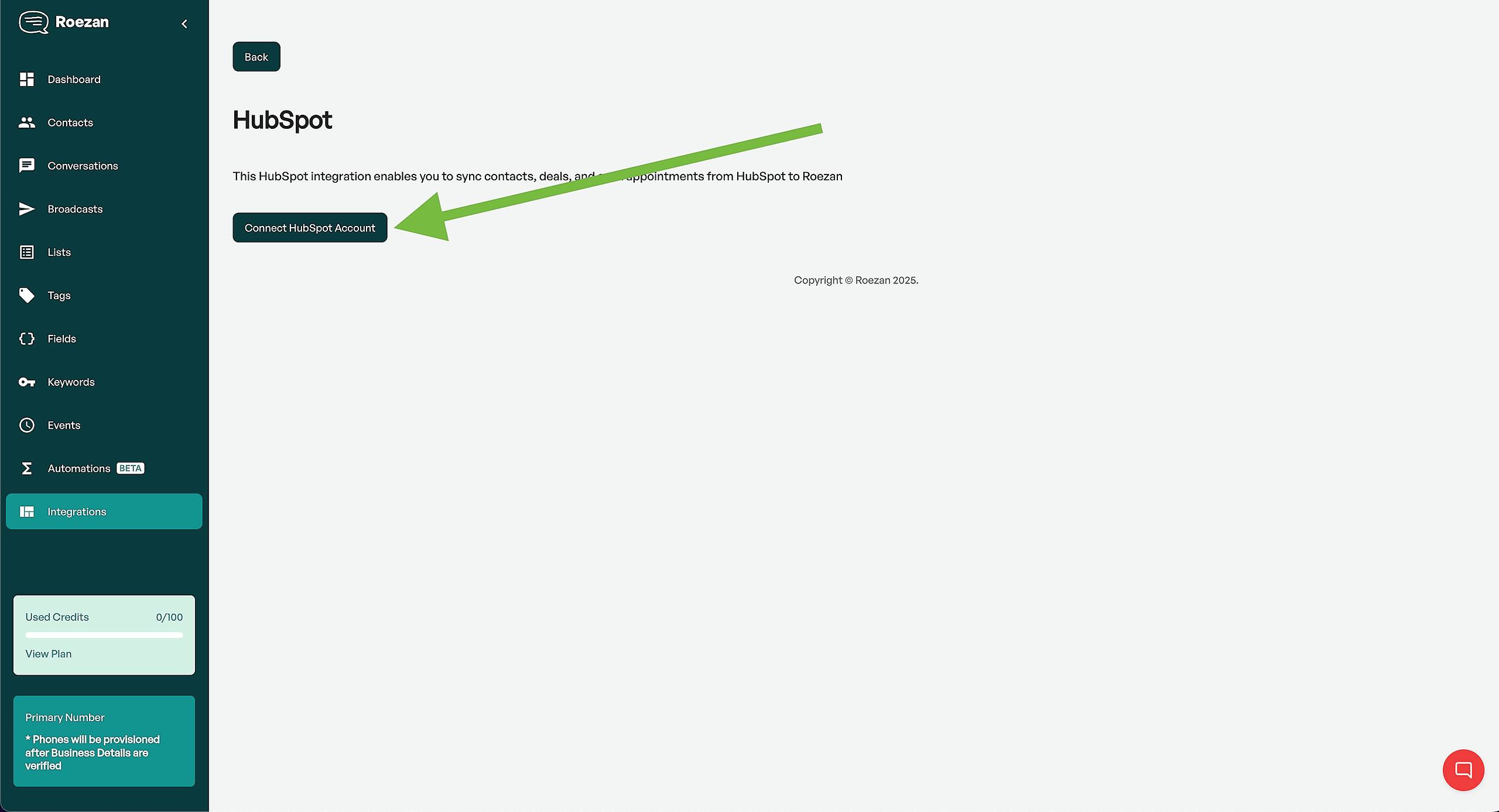
Go to Roezan's Integration Page and choose HubSpot
Connect Your HubSpot Account
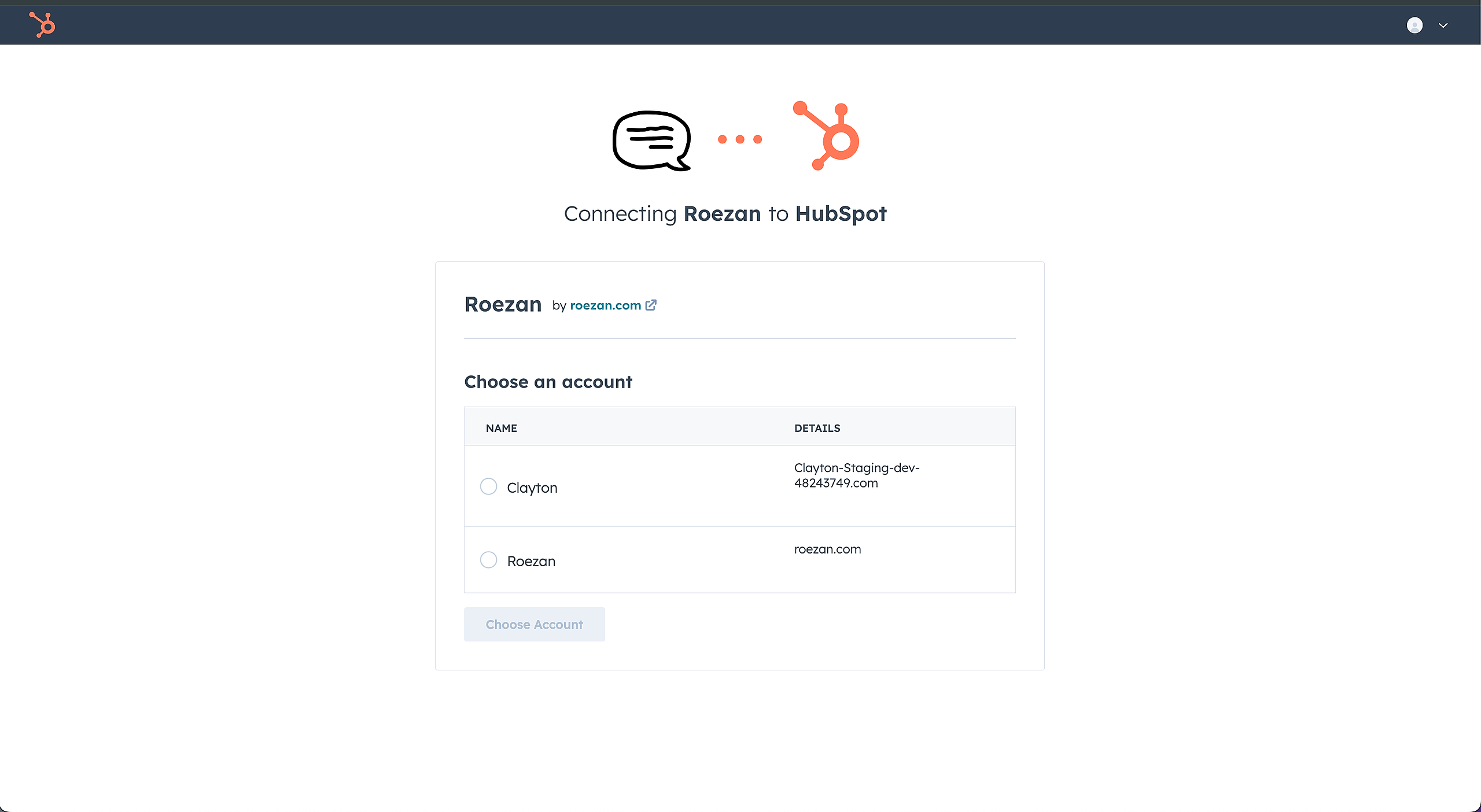
Login to your HubSpot Account
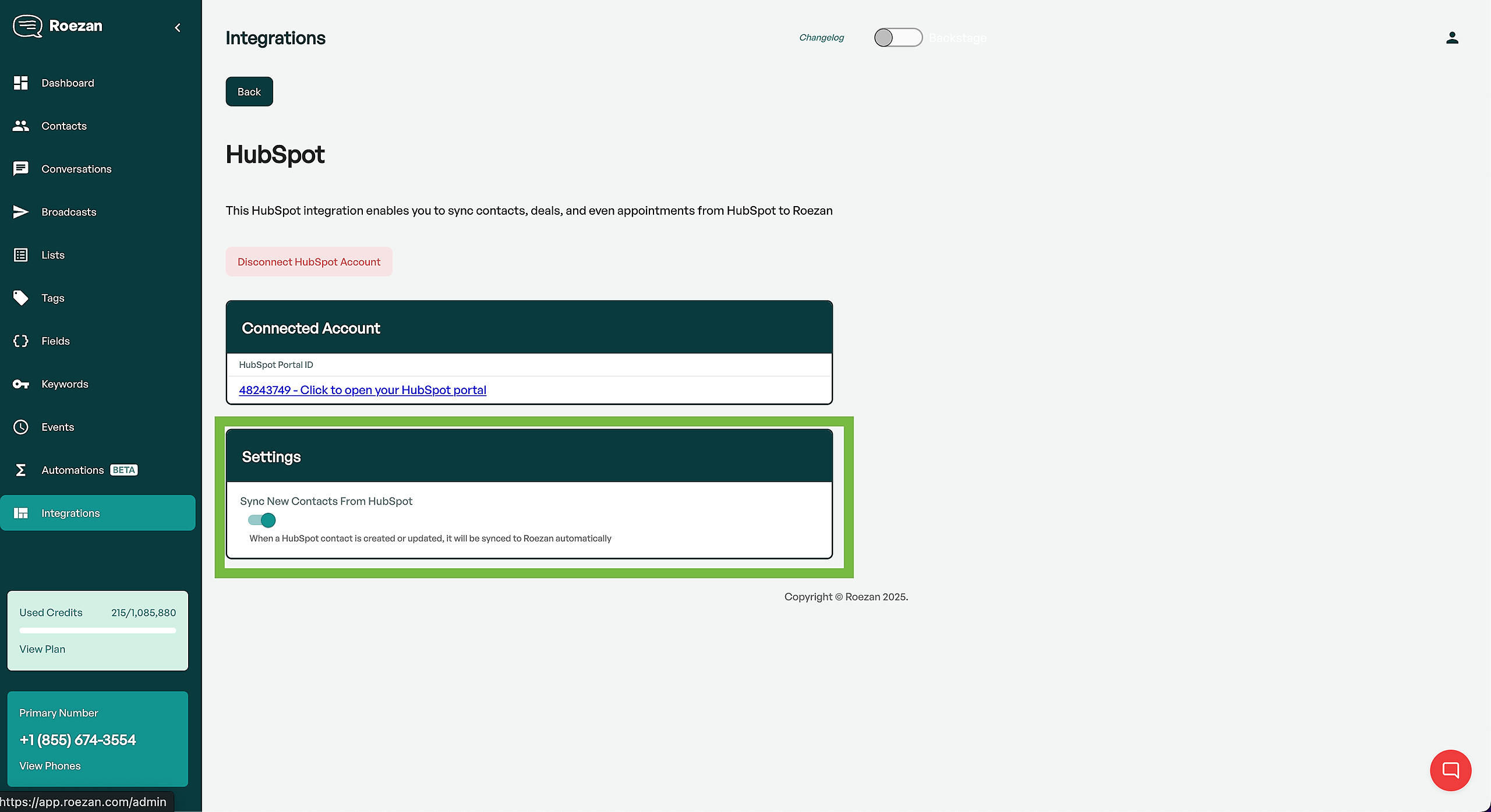
After connecting you will return to Roezan
P.S. At this point, if you'd like you can turn on contact sync, and new contacts in HubSpot will sync to Roezan
How To Add Roezan Actions Within A HubSpot Workflow
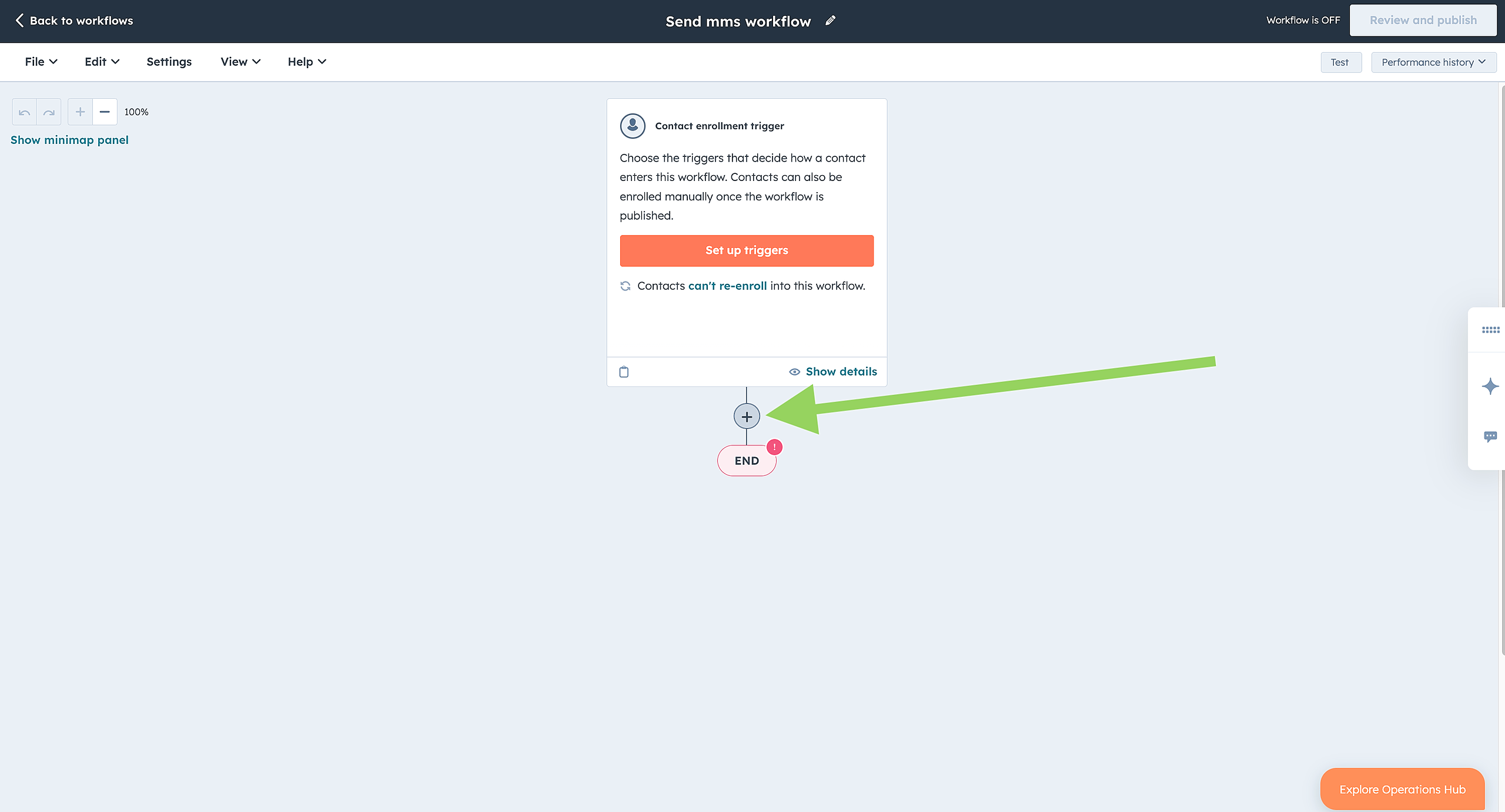
Go to your HubSpot workflow
Click + to add an action
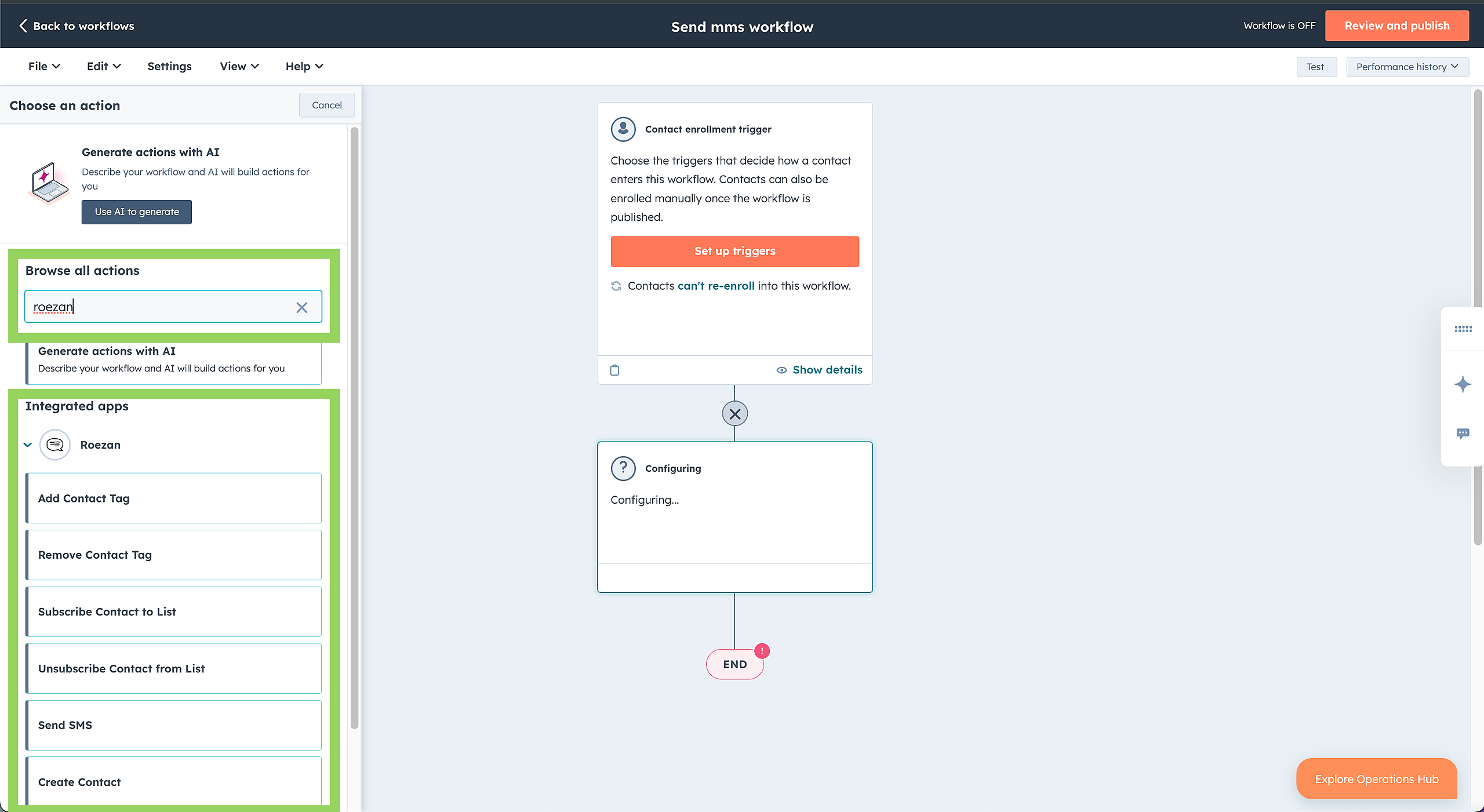
Search for Roezan
Select the Roezan action you'd like to add and configure it as you see fit
How To Add A Roezan Card To HubSpot CRM
In HubSpot, Go to Settings > Data Management > Contacts > Record Customization
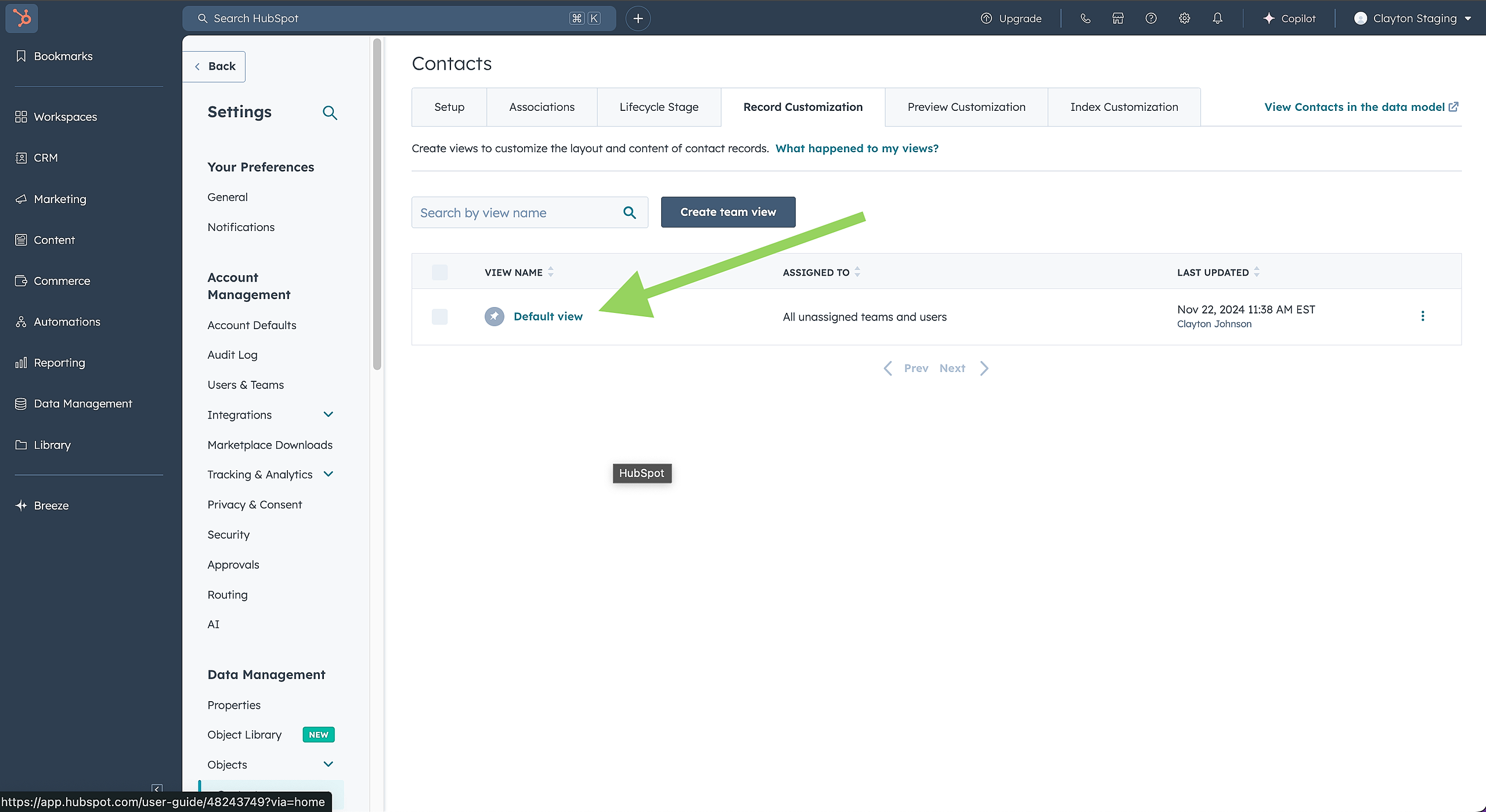
Then click on the view you'd like to change
On the right side, click "Add Cards"
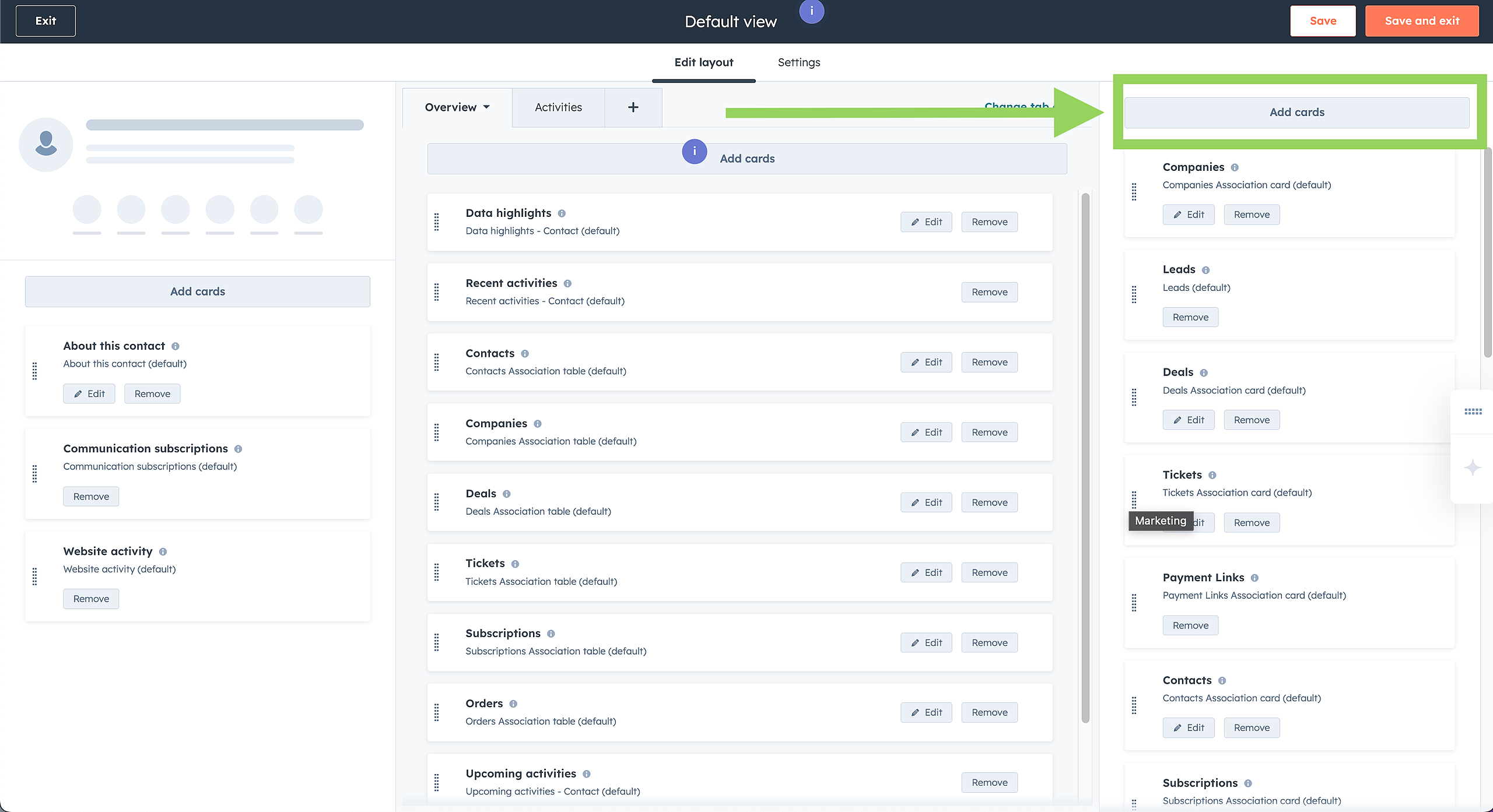
Search For Roezan
Click Create Card
You can move the card wherever you'd like
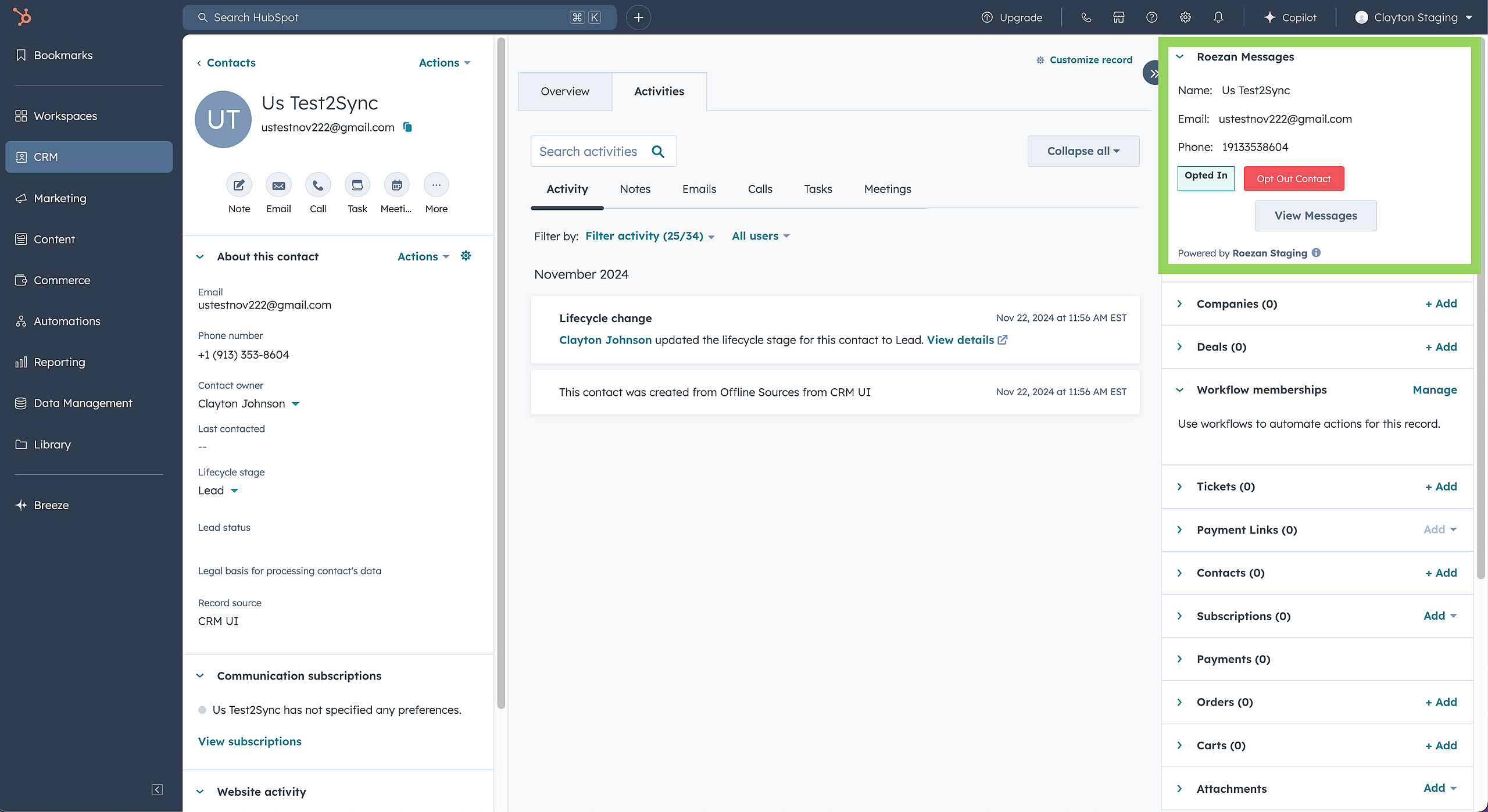
Now you can see the Roezan information and view the chat history
How To Send Messages Or View Conversation History In HubSpot
Follow the instructions to add a Roezan card to your CRM
Click "View Messages" within the Roezan card
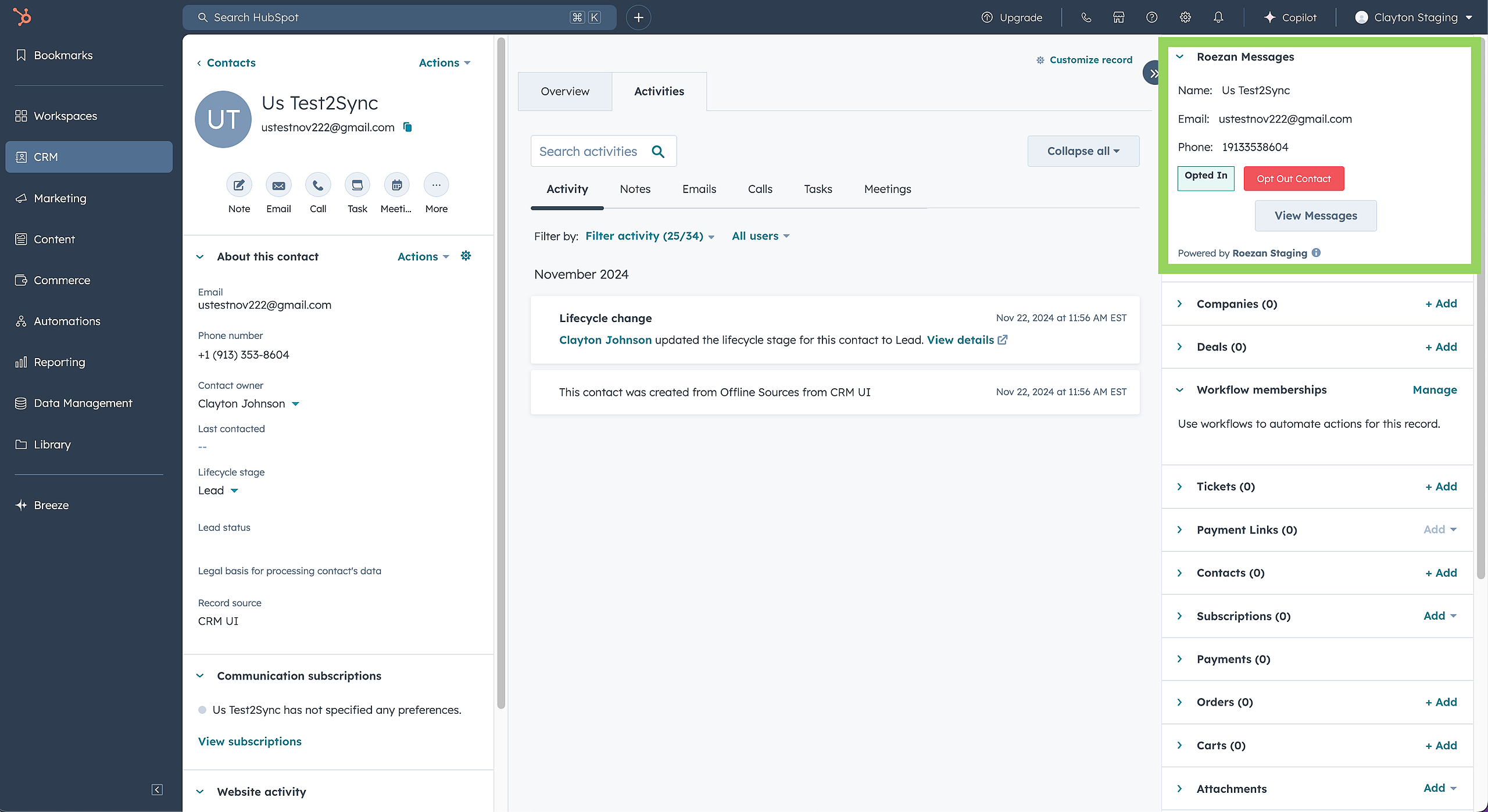
If necessary, log in with your Roezan username and password
Now you can view the conversation history and send messages from inside your HubSpot portal
Workflow Troubleshooting
1. Check that the workflow is turned "on"
2. Check that the contact is able to enter the workflow (by default contacts can't re-enroll)
3. Check the contact has completed the workflow
If all else fails, contact Roezan support and we will help you!
F.A.Q.
Do I need to use the HubSpot "Create Contact" action step before sending a message?
No, if a contact doesn't exist in Roezan, you can use any step and it will create the contact.
Can I use the Roezan link shortener inside HubSpot automations?
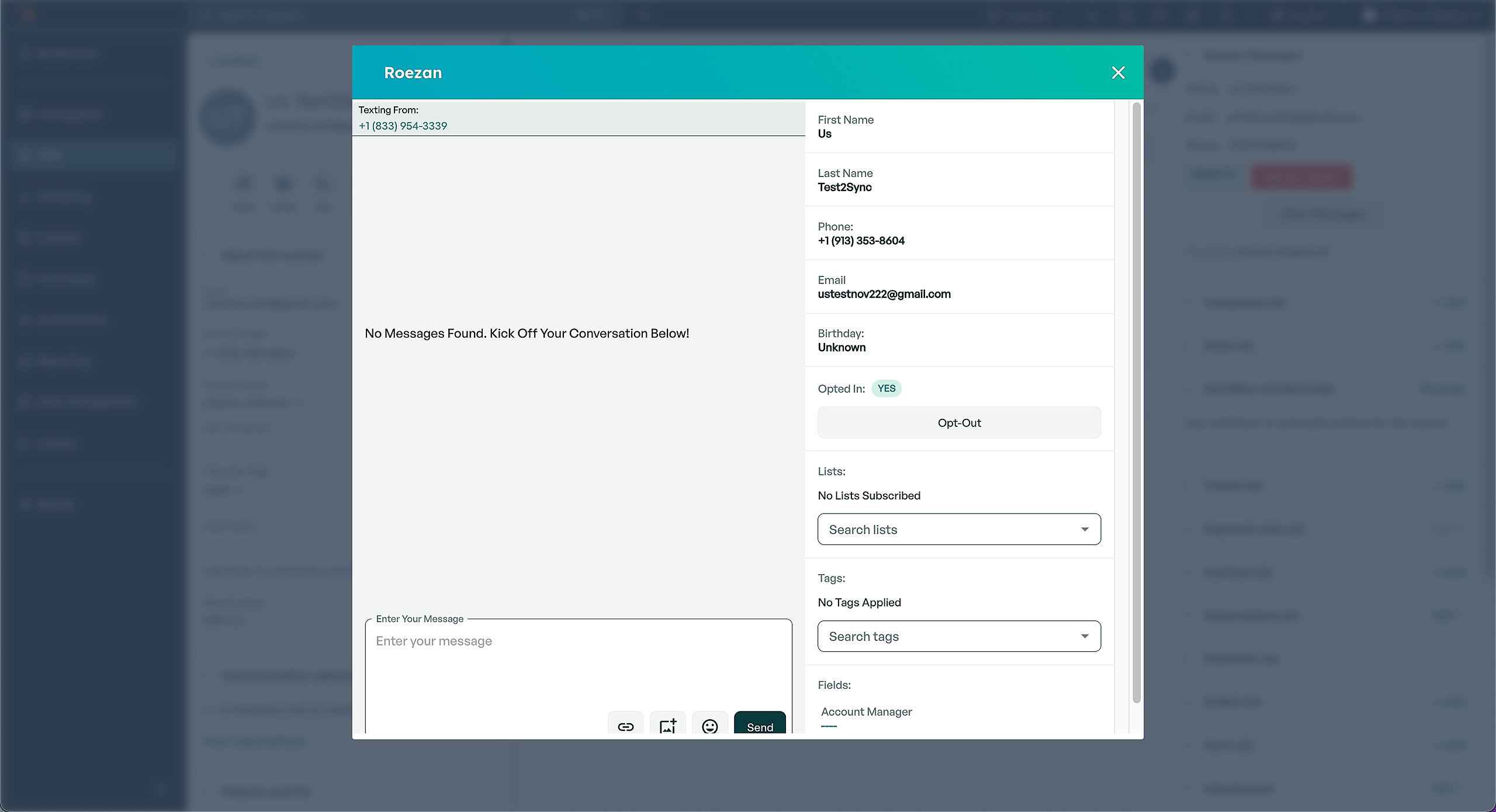
Yes, you can wrap your links in our merge tag and it will create a unique link when sent.
For example: %SHORT_UNIQUE_LINK(https://www.roezan.com)%
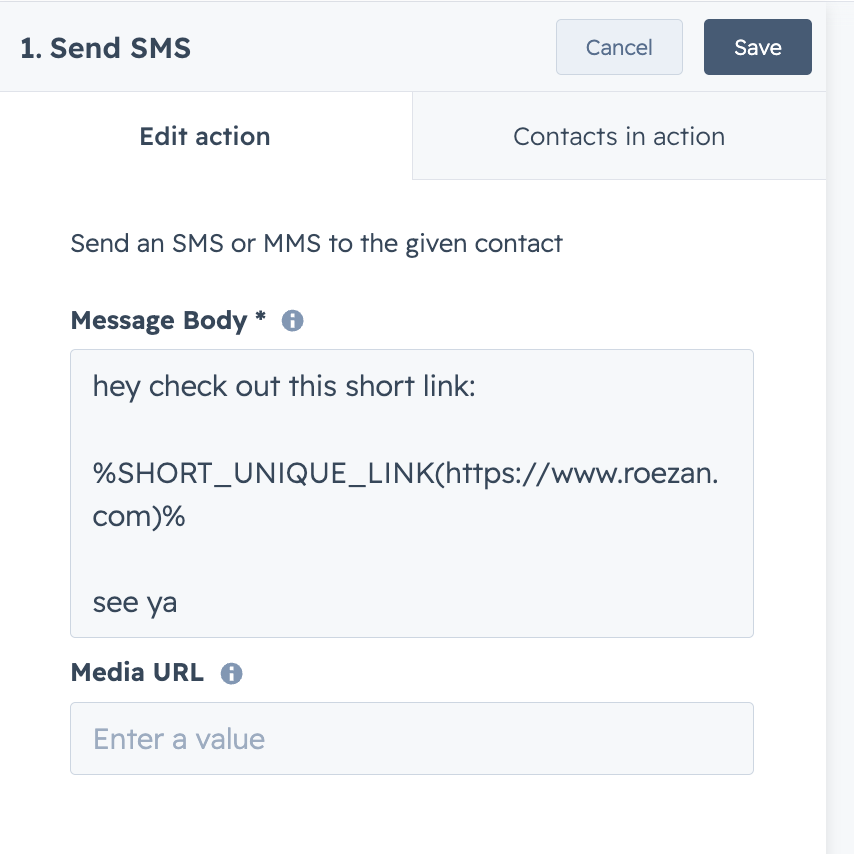
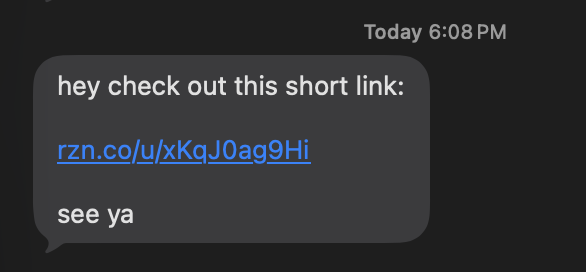
Will create a message like this: