

In Roezan you can easily bulk import contacts via spreadsheet.
Warning: Before you import contacts, please note that you must have received explicit permission to contact them via SMS.
Here's how to bulk import contacts:
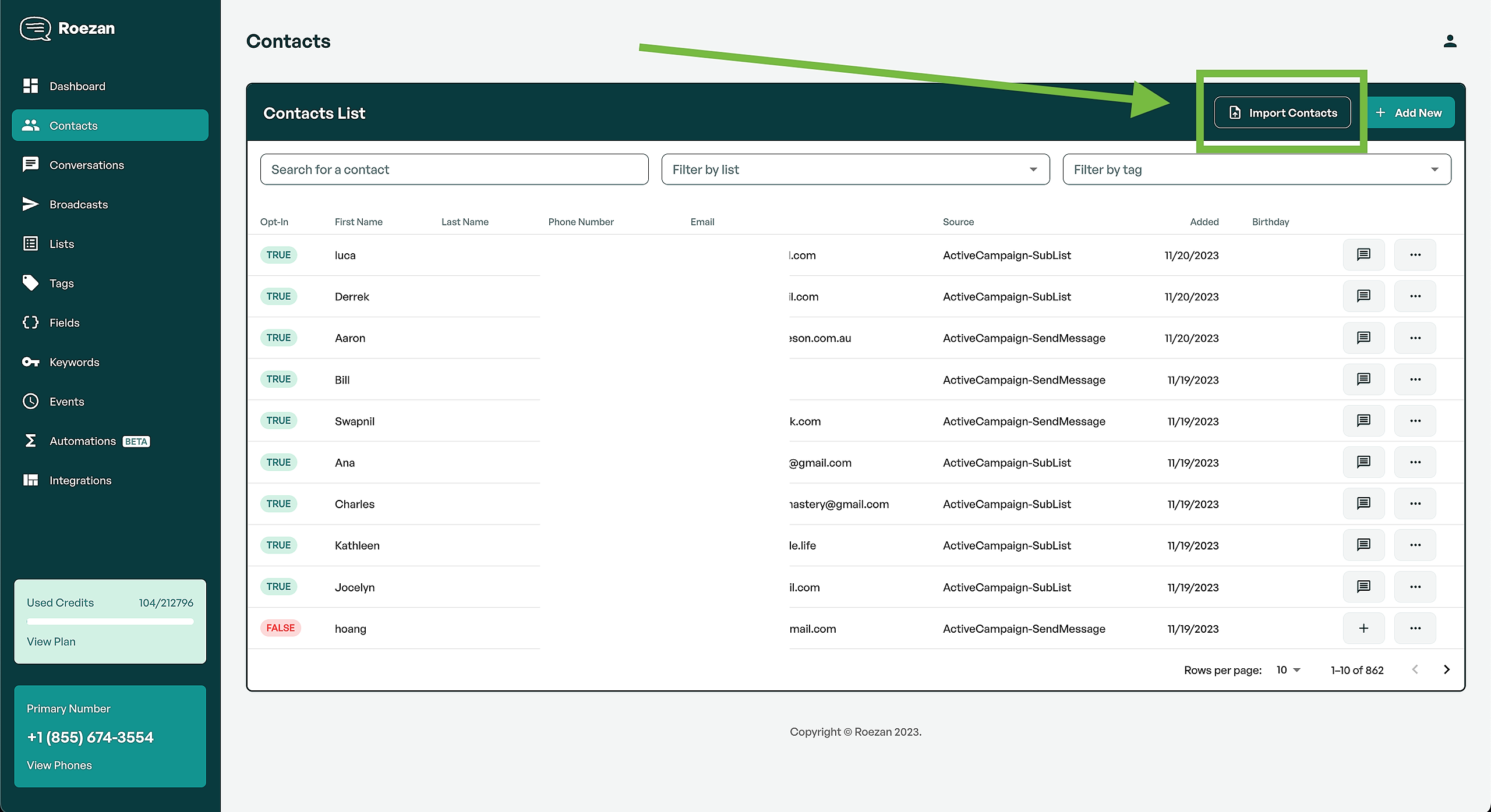
1. Go To Contacts & Click "Import Contacts"
Find the import button on the Contacts page
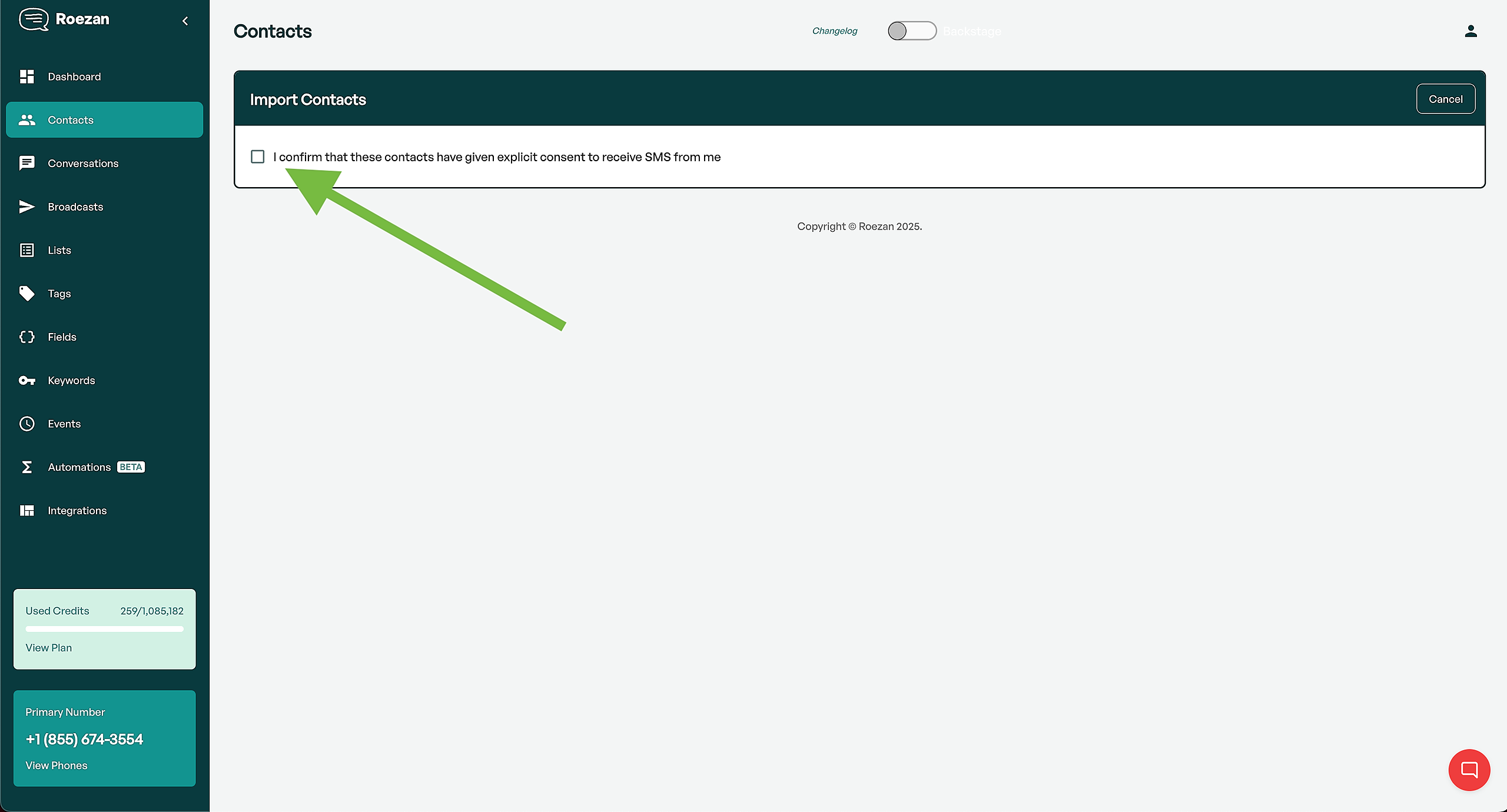
2. Click The Consent Checkbox
Make sure you've gotten explicit consent, then click the box to confirm.
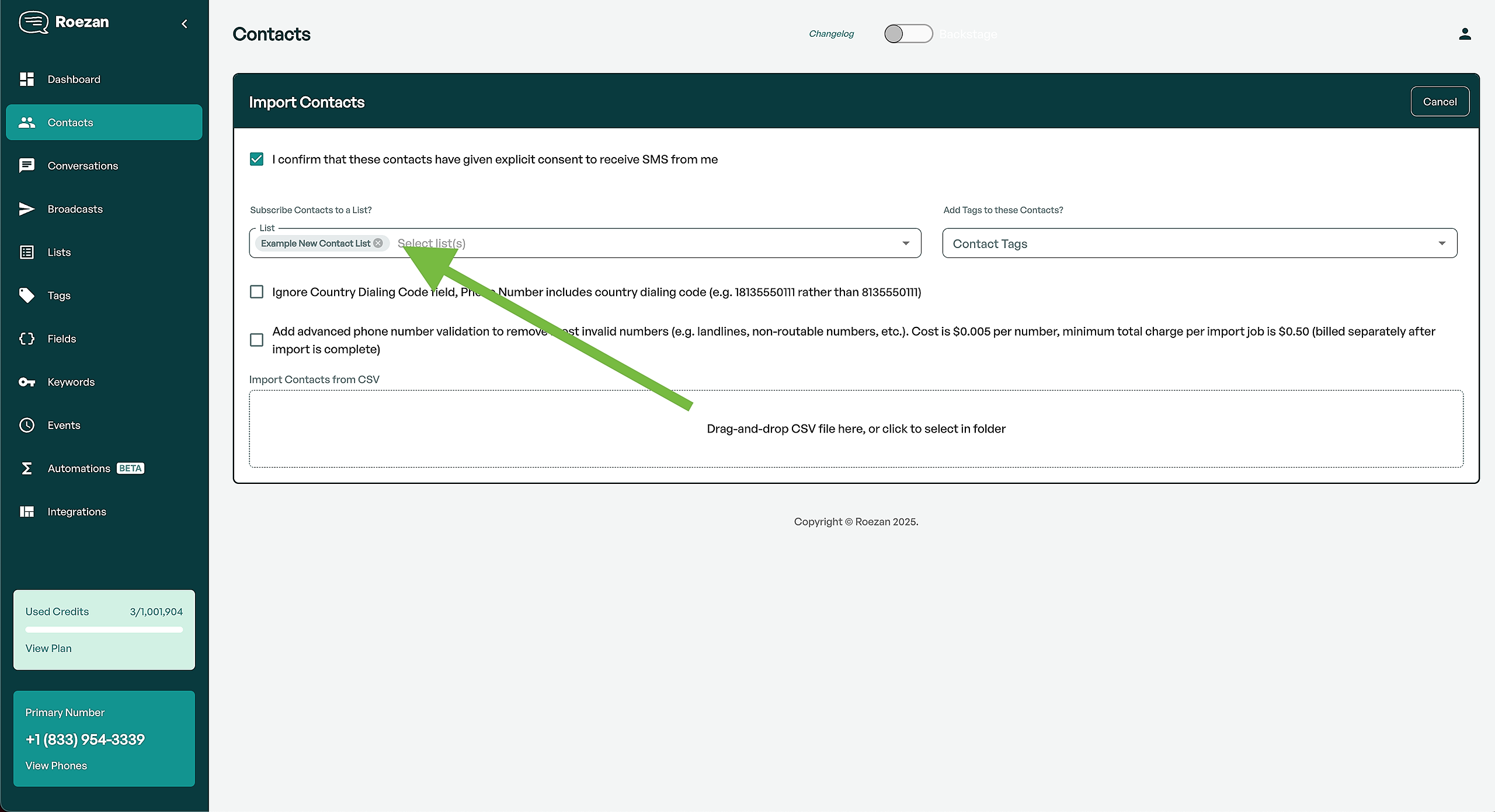
3. Chose a List or Tag
You must add contacts to a list or tag in order to import them.
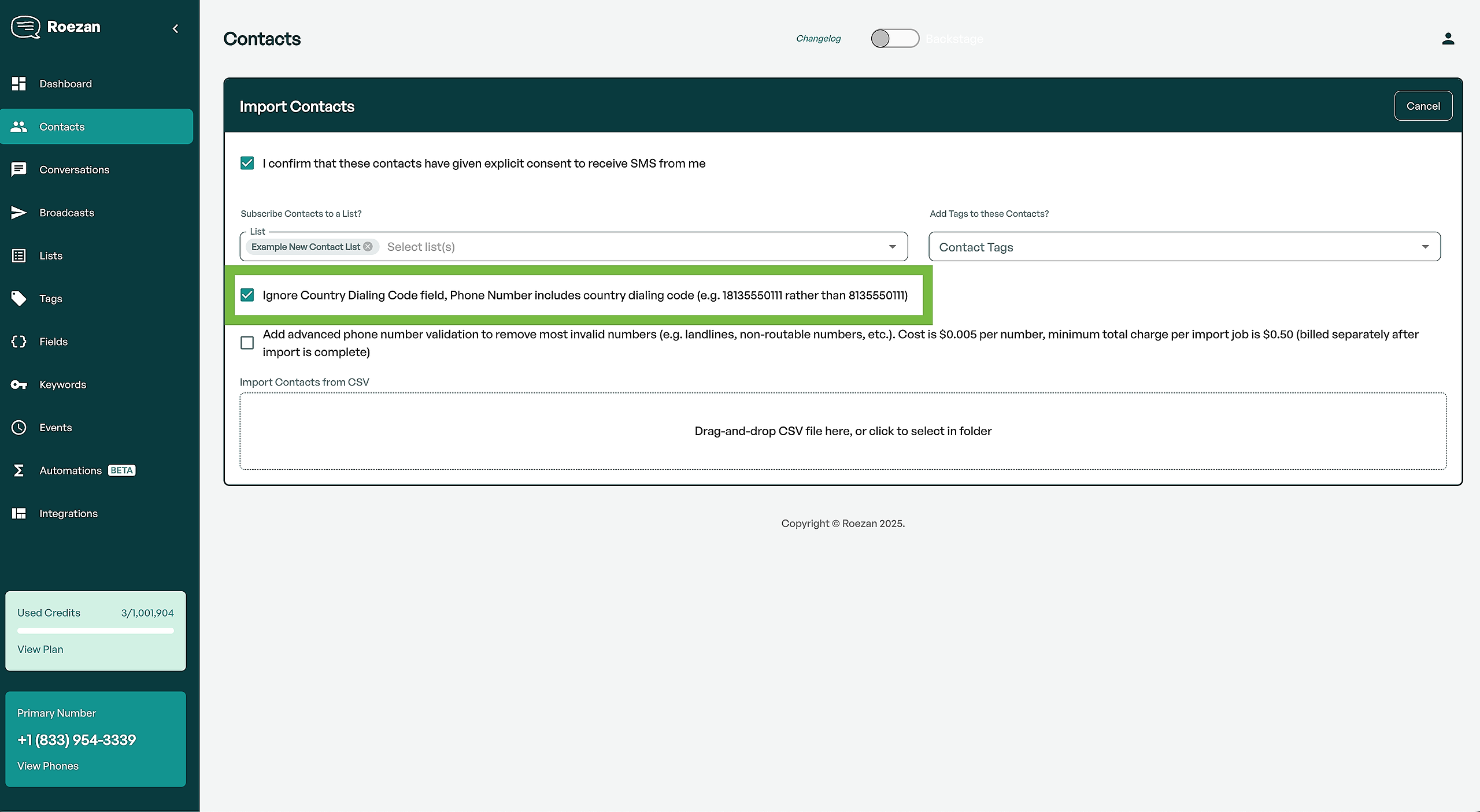
4. (Optional) Select The Country Code Option
If your spreadsheet includes the country code in the same column as the phone number, select "ignore country code"
If your spreadsheet has the country code in a separate column from the phone number, leave it unchecked.
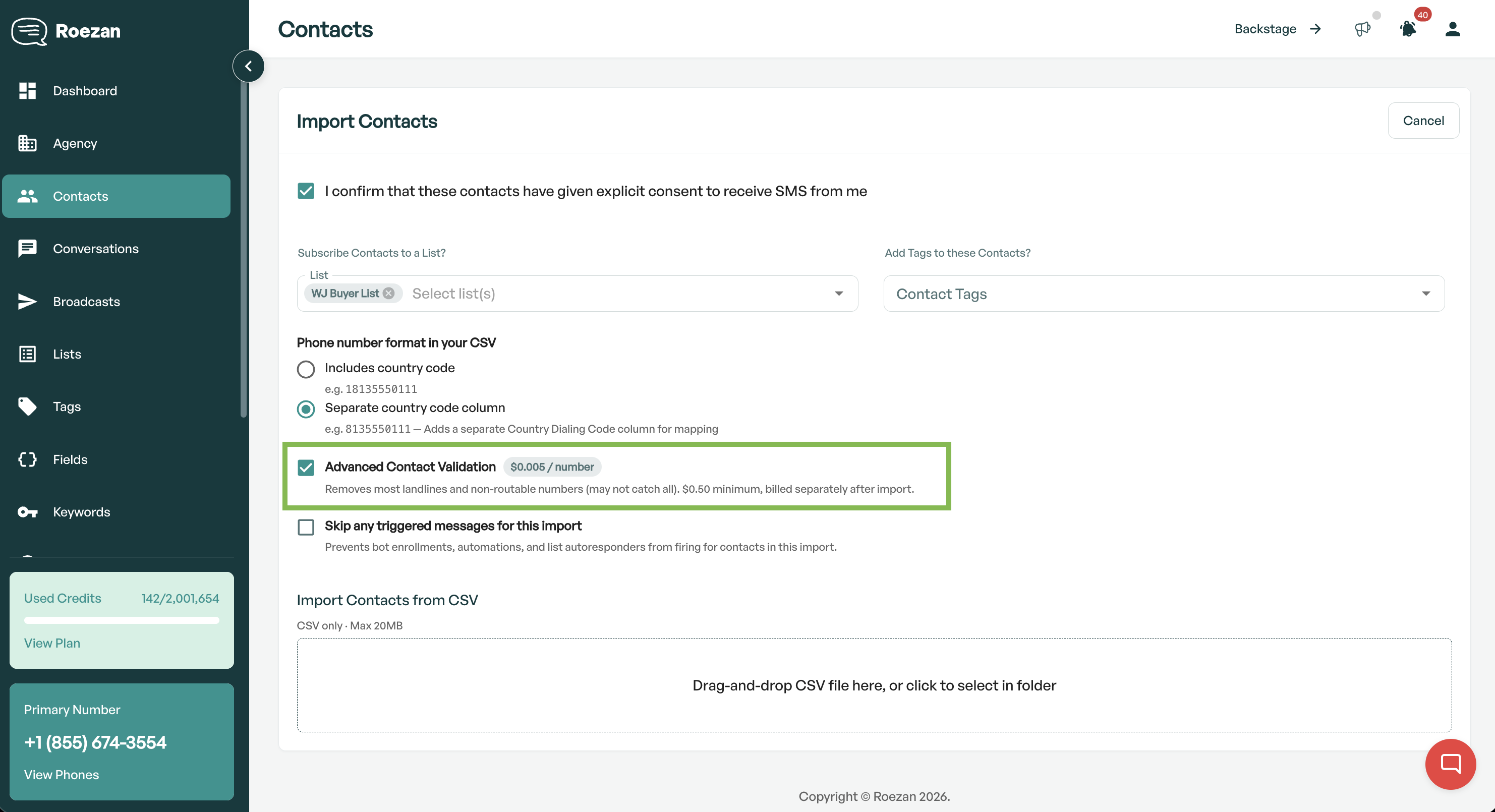
5. (Optional) Advanced Contact Validation ($0.005 per contact)
Select this option if you'd like us to perform advanced contact validation after uploading.
If you select this option, we'll check each contact with the carriers and opt-out any contacts that come back as invalid, landline, or otherwise untextable.
Note: Selecting this option and uploading will charge $0.005 (half a cent) per contact for the validation.
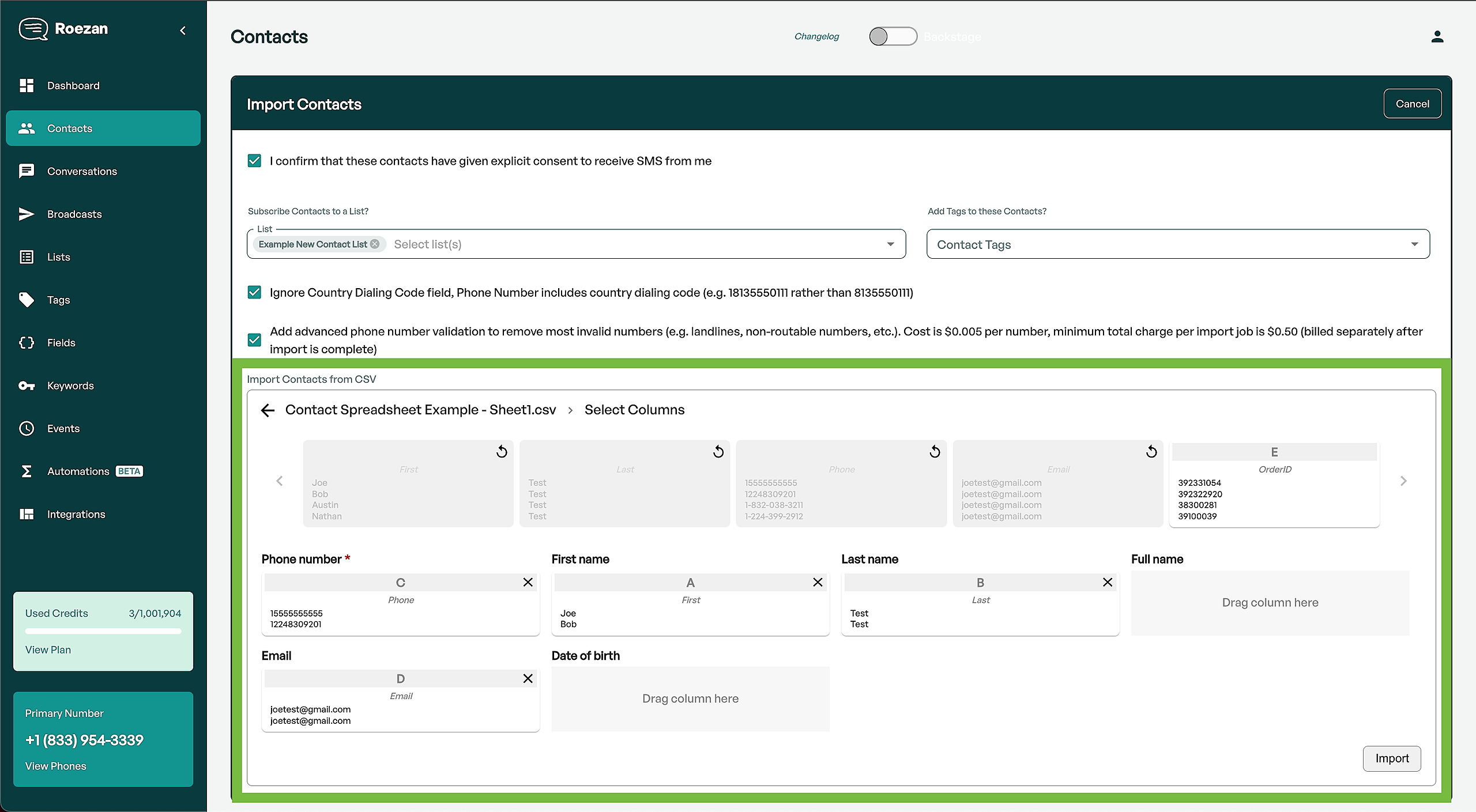
6. Upload Contacts & Select Columns
Hit upload, then choose the appropriate columns.
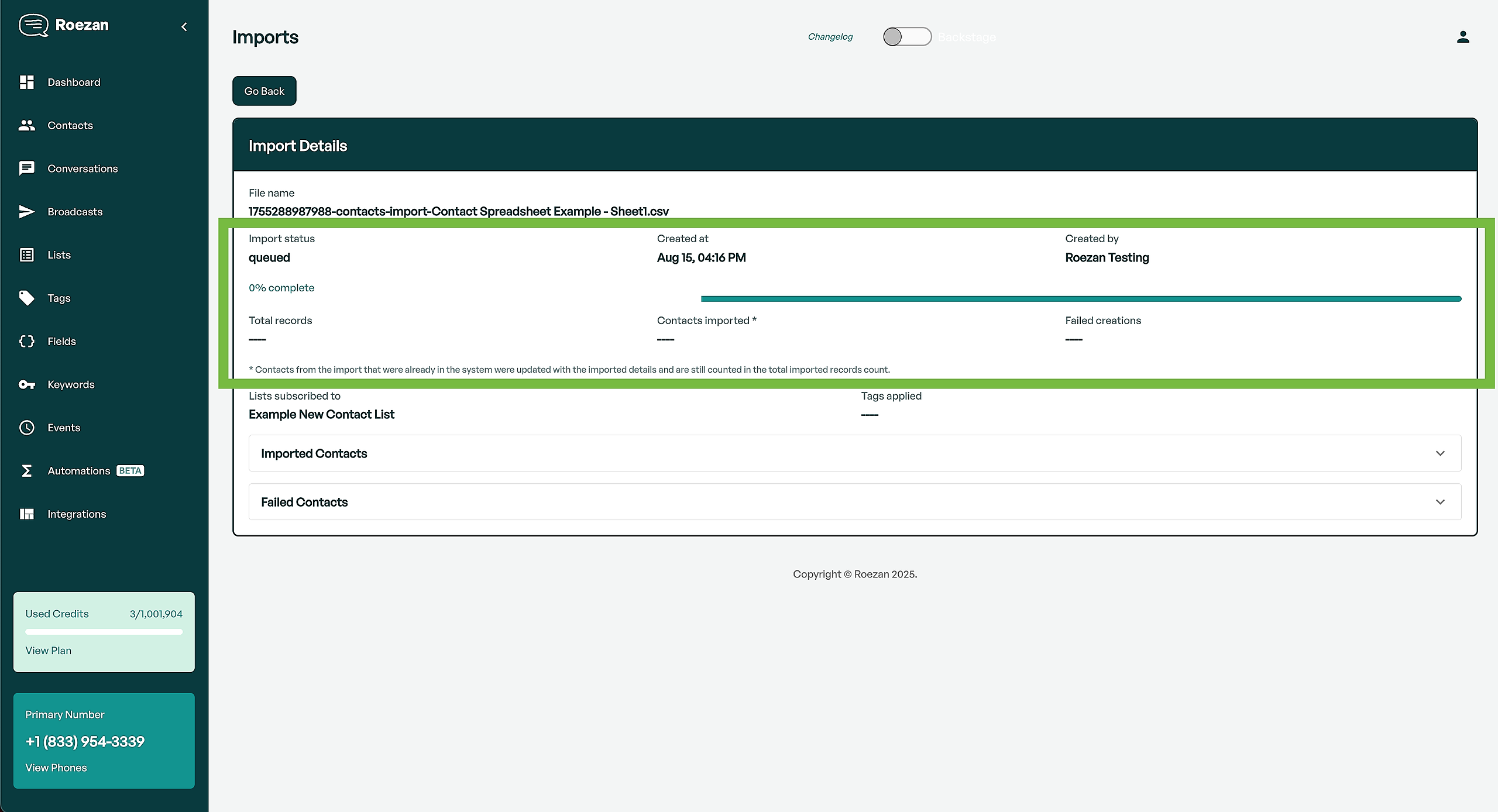
8. Import
Hit import and the import will start processing. For large lists it may require some patience!
Don't worry the results will be worth it.
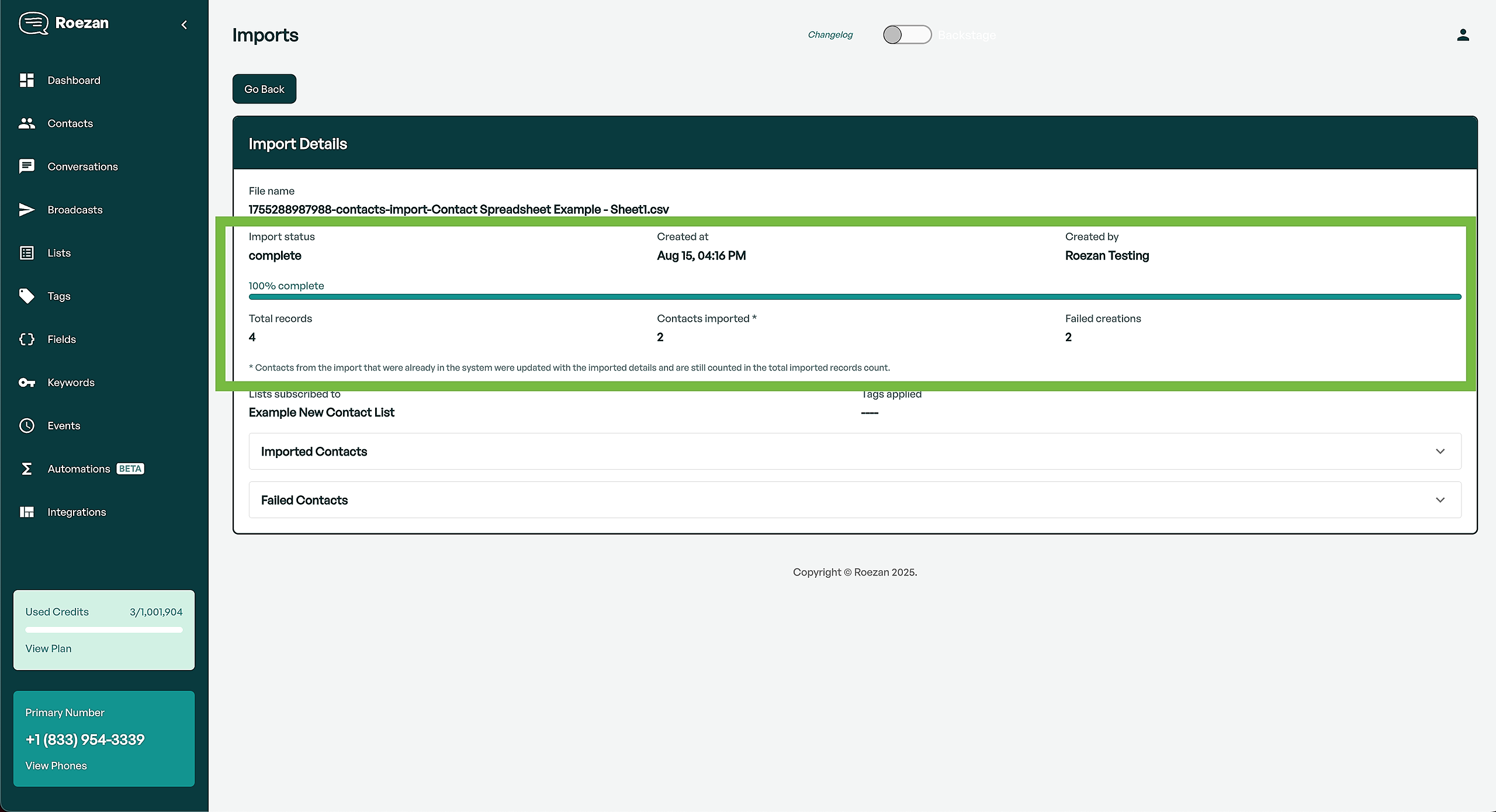
8. Review Results
You'll see results on the last page.
It's typical to see some contacts fail in the case they were malformed or we determined they were landlines, fake numbers etc.
Done!
If you have any issues, just contact our support and we'd be happy to help!